Input Module
The Input module provides an abstract input system that allows handling user actions in a platform-independent way. It maps keyboard keys (on Windows/Web) or GPIO pins (on ESP32) to "actions" that can be queried uniformly.
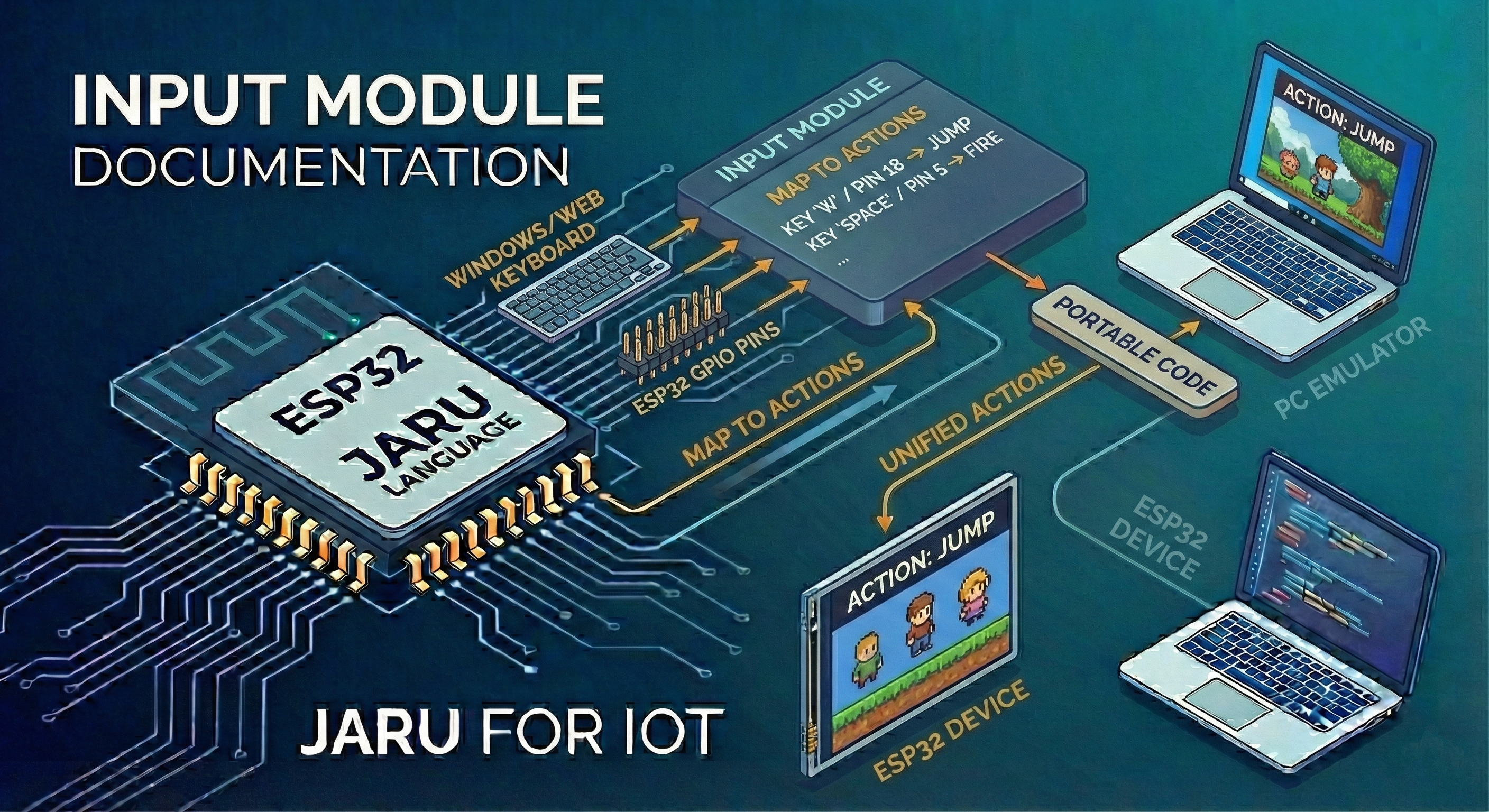
This approach allows writing portable code that works both on the PC emulator and on ESP32 devices, simply by changing the action mappings.
Usage
use Input
Key Concepts
Actions
The Input module works with actions identified by a number (0-15). An action represents an abstract user input like "jump", "shoot", or "move left".
// Define constants for actions
var ACTION_JUMP = 0
var ACTION_SHOOT = 1
var ACTION_LEFT = 2
var ACTION_RIGHT = 3
Platform Mapping
On Windows/Web, actions are mapped to keyboard keys. On ESP32, they are mapped to GPIO pins configured with internal pull-up resistors.
// On Windows/Web: SPACE key for jumping
Input.map(ACTION_JUMP, "SPACE")

// On ESP32: GPIO 15 for jumping (button connected to GND)
Input.map(ACTION_JUMP, 15)
Functions
map
The map(actionId, key/pin) function associates an action with a keyboard key or GPIO pin.
Parameters
| Parameter | Type | Description |
|---|---|---|
actionId | integer | Action identifier (0-15) |
key/pin | string/integer | Key name (Windows/Web) or GPIO pin number (ESP32) |
Return
Returns true if the mapping was successful.
// Map keys for a game
Input.map(0, "W")      // Up
Input.map(1, "S")      // Down
Input.map(2, "A")      // Left
Input.map(3, "D")      // Right
Input.map(4, "SPACE")  // Jump
Input.map(5, "CTRL")   // Shoot
Supported Keys (Windows/Web)
| Category | Keys |
|---|---|
| Letters | A - Z |
| Numbers | 0 - 9 |
| Arrows | UP, DOWN, LEFT, RIGHT |
| Special | SPACE, ENTER, ESC, TAB |
| Modifiers | SHIFT, CTRL, ALT |
On ESP32, pins are automatically configured as INPUT_PULLUP. Connect the button between the pin and GND. The state is internally inverted, so a pressed button returns true.
pressed
The pressed(actionId) function checks if an action is currently being pressed.
Parameters
| Parameter | Type | Description |
|---|---|---|
actionId | integer | Action identifier (0-15) |
Return
Returns true while the key/button is pressed, false otherwise.
// Continuous movement while held
if (Input.pressed(2)) then
    x = x - speed
end

if (Input.pressed(3)) then
    x = x + speed
end
justPressed
The justPressed(actionId) function detects the exact moment an action is pressed.
Parameters
| Parameter | Type | Description |
|---|---|---|
actionId | integer | Action identifier (0-15) |
Return
Returns true only on the frame when the key/button transitions from not pressed to pressed.
// Single action on press (doesn't repeat while held)
if (Input.justPressed(4)) then
    player.jump()
end

if (Input.justPressed(5)) then
    player.shoot()
end
pressed(): Returnstrueon EVERY frame while the key is pressed. Useful for continuous movement.justPressed(): ReturnstrueONLY on the first frame. Useful for single actions like jumping or shooting.
released
The released(actionId) function detects the exact moment an action is released.
Parameters
| Parameter | Type | Description |
|---|---|---|
actionId | integer | Action identifier (0-15) |
Return
Returns true only on the frame when the key/button transitions from pressed to not pressed.
// Detect when a button is released
if (Input.released(4)) then
    // Cancel jump or reduce height
    player.cancelJump()
end
update
The update() function forces a manual update of the input states.
// Usually not necessary to call manually
// since pressed(), justPressed() and released()
// automatically update the state

Input.update()
The input system uses a "lazy update" mechanism. The state is automatically updated the first time it's queried in each frame. You only need to call update() if you require forcing an update at a specific moment.
Complete Example
Character Control
use Display
use Input

// Define actions
var UP = 0
var DOWN = 1
var LEFT = 2
var RIGHT = 3
var JUMP = 4
var SHOOT = 5

// Configure key mappings
Input.map(UP, "W")
Input.map(DOWN, "S")
Input.map(LEFT, "A")
Input.map(RIGHT, "D")
Input.map(JUMP, "SPACE")
Input.map(SHOOT, "J")

// Player variables
var x = 160
var y = 120
var speed = 2
var jumping = false

Display.open(320, 240)
Display.mode(2)

var draw = Display.draw

while (true)
    // Continuous movement
    if (Input.pressed(LEFT)) then
        x = x - speed
    end
    if (Input.pressed(RIGHT)) then
        x = x + speed
    end
    if (Input.pressed(UP)) then
        y = y - speed
    end
    if (Input.pressed(DOWN)) then
        y = y + speed
    end

    // Single actions
    if (Input.justPressed(JUMP)) then
        jumping = true
        println("Jumping!")
    end

    if (Input.justPressed(SHOOT)) then
        println("Shot fired!")
    end

    // Render
    draw.clear(0x000000)
    draw.rectfill(x - 8, y - 8, x + 8, y + 8, 0x00FF00)
    Display.update()

    pause(16)
end
Cross-Platform Control
use Input

// Define actions
var BTN_A = 0
var BTN_B = 1

// Mapping can be done in a configuration file
// or by detecting the platform

// For Windows/Web:
Input.map(BTN_A, "Z")
Input.map(BTN_B, "X")

// For ESP32 (uncomment based on platform):
// Input.map(BTN_A, 15)
// Input.map(BTN_B, 14)

// The rest of the code is identical on both platforms
while (true)
    if (Input.justPressed(BTN_A)) then
        executeActionA()
    end

    if (Input.justPressed(BTN_B)) then
        executeActionB()
    end

    pause(16)
end
Considerations
The system supports a maximum of 16 simultaneous actions (IDs from 0 to 15). If you need more controls, consider using key combinations or a context system where the same actions mean different things depending on the game state.
On ESP32, physical buttons can generate "bounce" (multiple rapid presses when pressing). The Input module does not include hardware debounce. If you experience issues, consider adding 100nF capacitors between the pin and GND, or implementing software debounce.
Supported Platforms
| Platform | Support | Notes |
|---|---|---|
| ESP32 | ✅ | GPIO pins with INPUT_PULLUP |
| Windows (SDL2) | ✅ | Keyboard keys via SDL |
| Emscripten (Web) | ✅ | Keyboard keys via SDL |