Settings and update notices
This page covers what you configure in the Config tab of the ribbon, except the boards:
- Settings: the paths of the compiler and the VMs, update notices, the AI providers and the window layout.
- Windows: the Windows VM of each project, with MQTT and the window size.
- Updates: checks whether there's a new version.
And also the Line numbers checkbox, in the Build tab.
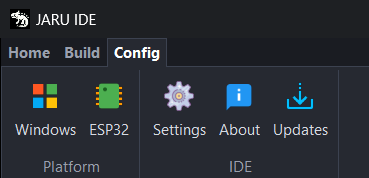
ESP32 opens ESP32 Tools, with the project's boards, and About, the IDE version and the credits.
Settings
Config › IDE › Settings opens the IDE settings window. They belong to the IDE, not to the project: they apply to all of them.
Changes are applied and saved when you press Apply config: until then, what you type doesn't count. A path picked with ... applies right away, but it isn't saved without Apply config either.
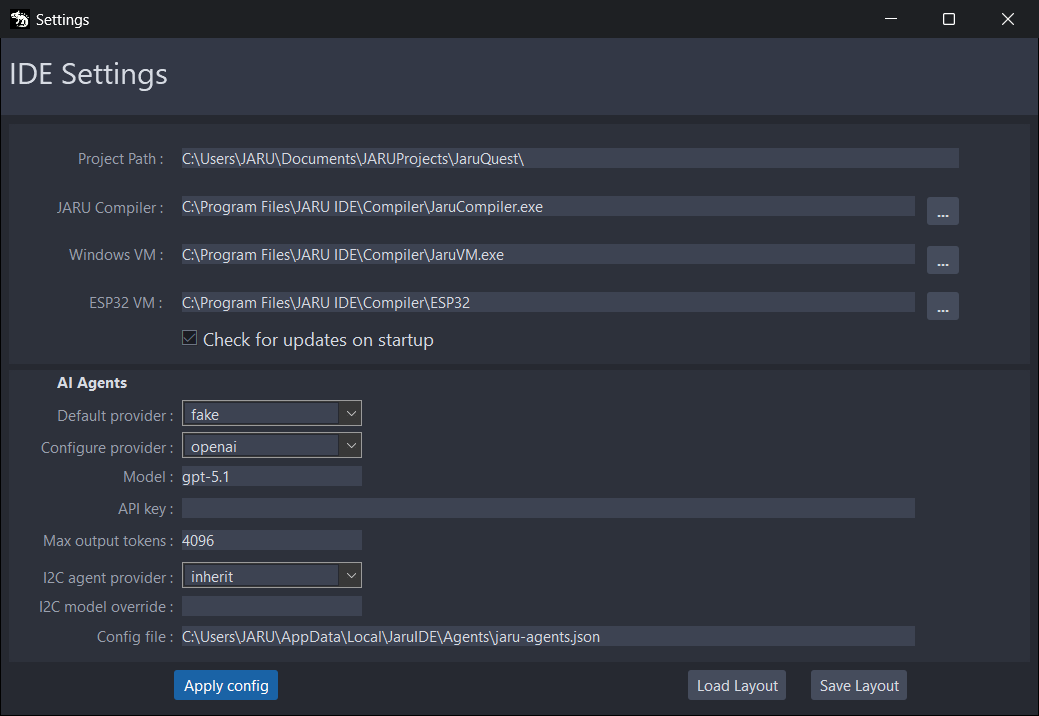
The paths
| Field | What it is | Default |
|---|---|---|
| Project Path | The folder of the open project. Read-only: with no project, it says "(No project loaded)". | |
| JARU Compiler | The compiler, JaruCompiler.exe. | Compiler\JaruCompiler.exe, in the IDE folder |
| Windows VM | The Windows VM, JaruVM.exe. Run, Debug and the scene editor's Play use it. | Compiler\JaruVM.exe, in the IDE folder |
| ESP32 VM | The folder of the VM firmware and of the board tools, which ESP32 Tools uses. | Compiler\ESP32, in the IDE folder |
| Check for updates on startup | Check on startup whether there's a new version (see "Update notices"). | Ticked |
..., next to each path, opens the dialog to pick it. If a path doesn't exist, its box shows empty.
AI Agents
The AI providers of the I2C driver generator (Generating a driver with AI).
| Field | What it is | Default |
|---|---|---|
| Default provider | The provider: fake, openai (OpenAI) or gemini (Gemini). fake doesn't call any AI. | fake |
| Configure provider | Which provider the three fields below belong to: openai or gemini. Each one keeps its own. | openai |
| Model | The provider's model. | gpt-5.1 for OpenAI and gemini-2.5-flash for Gemini |
| API key | Your key for the provider. It shows as asterisks. | Empty |
| Max output tokens | The maximum size of each AI answer. | 4096 |
| I2C agent provider | The driver generator's provider. inherit uses the one in Default provider. | inherit |
| I2C model override | Another model, for the generator only. Empty, it uses the one in Model. | Empty |
| Config file | The file where all of this is saved. Read-only. |
Max output tokens only counts above what the agent needs: when searching the web it uses between 8,192 and 16,384, and when writing the driver, between 16,384 and 65,536. With the default value, it uses the minimums.
AI Agents is saved in %LOCALAPPDATA%\JaruIDE\Agents\jaru-agents.json, with the key as is. Don't share that file.
Load Layout and Save Layout
The layout of the IDE windows: which panels are open and where they're docked.
- Save Layout saves it in
%LOCALAPPDATA%\JaruIDE\layout.xml. - Load Layout goes back to the one you saved.
The IDE starts with that layout. It doesn't save it when it closes: if you move the panels and don't press Save Layout, they come back as they were next time. If there's no layout.xml, the IDE copies the one in its installation folder, the default one.
Where it's saved
The paths, Check for updates on startup and what you choose in update notices go in %LOCALAPPDATA%\JaruIDE\ide_config.xml (C:\Users\<you>\AppData\Local\JaruIDE). AI Agents, in jaru-agents.json, which Config file shows.
The Windows configuration
Config › Platform › Windows opens Windows Tools: how the Windows VM starts with the open project. It belongs to the project: Save Config saves it in Config/windows.cfg, inside it.
When you press Run with the Windows target, the IDE saves what the window holds, even if you didn't press Save Config, and copies it to Build/flash/boot.cfg, which is what the VM reads when it starts. A project with no windows.cfg starts with the defaults.
Device Identity
Device Name is the device's name. By default, the PC's; the button next to it puts it back. The Windows VM keeps it, but doesn't use it today.
MQTT
The MQTT broker the Windows VM connects to, for the MQTT module. With Enable MQTT off, the default, the VM doesn't connect and the other fields can't be changed.
| Field | Default | In the Windows VM |
|---|---|---|
| Enable MQTT | Off | On, the VM connects to the broker at startup: it waits up to 3 seconds before starting the program and, if it doesn't connect, keeps trying while the program runs. |
| Broker and Port | test.mosquitto.org and 1883 | The broker's server and port. |
| Client ID | JARUWin11_01 | The name it uses to log in to the broker. Two VMs with the same one on the same broker keep kicking each other out. |
| User and Password | Empty | The broker's user name and password. With User empty, it logs in with no user name. |
| QoS and Retain | 0 and off | Not used. |
| Will Topic, Will Message, Will QoS and Will Retain | iotdev/ESP32C11FB6082801/status, {"connected": false}, 0 and off | Not used. |
| Clean Sessions | On | It always connects with a clean session. |
| Time Send, Send Status and Interval ms | On, on and 60000 | Not used. |
Client ID and User also make up the topic of MQTT.pubinfo(), <User>/<Client ID>/device: with User empty, /JARUWin11_01/device. If the broker doesn't accept the connection, the VM console says so ("did not accept the connection; check Client ID, User and Password") and tries again every 5 seconds. The boards have their own configuration, in ESP32 Tools.
Projects saved with an earlier version have User iotdev and a sample password, which the old VM didn't use. test.mosquitto.org rejects that user: if the project uses MQTT with that broker, leave User empty.
Password shows in plain text, and Config/windows.cfg saves it as is, inside the project: if you share it or push it to Git, it goes with it.
Display
Window Scale makes the VM window bigger: x1, the default, is the program's size, and x2, x3 and x4, twice, three times and four times as big. The program doesn't change: it keeps the size from Display.open, and each pixel is drawn bigger, without smoothing.
If the window doesn't fit on the screen, the VM lowers the scale until it fits, and says so in its console: "Window scale x3 does not fit on screen, using x2". The boards don't use it.
The Line numbers checkbox
Build › Target › Line numbers says whether the compiled program (the .jxr) carries the code's line numbers.
- Ticked, the default: a runtime error says which line it happened on.
- Unticked: the program takes less RAM on the board, but runtime errors don't say the line. When compiling, the Output warns you: "Line numbers: off. Runtime errors will not show the line."
It belongs to the project, and it's saved in it right away (line_numbers, in the .jpr). It can only be changed with a project open.
Debug and the scene editor's Play always compile with line numbers. If the compiled program doesn't match the checkbox, for example after a Debug, Run compiles it again before running it.
Update notices
JARU IDE tells you when a new version comes out. It checks:
- On startup, after the project wizard, if Check for updates on startup is ticked in Settings (it is by default). It checks once, in the background, and if it can't (no connection, for example), it says nothing.
- When you press Config › IDE › Updates. Then it always answers: with the notice, with "You are using the latest version of JARU IDE." or with "Could not check for updates:" and the error.
The new version notice
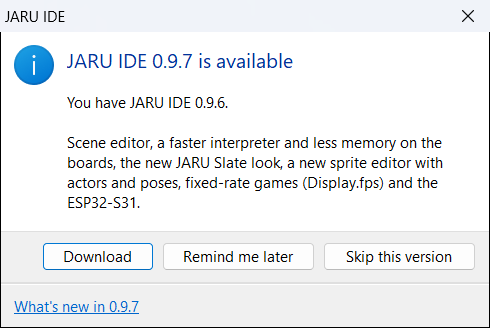
It shows if the published version is newer than yours. It says which one is out, which one you have and what it brings. At the bottom, What's new in … opens that version's notes in the browser, without closing the notice.
- Download opens the download page in the browser. The notice comes back on every startup until you install the new version.
- Remind me later silences it for 7 days. If another version comes out before then, it tells you about that one.
- Skip this version silences it until a version newer than that one comes out.
If you close it with Esc or the X, it comes back on the next startup. Updates shows it even if you silenced it.
Important notices
A new version can be marked as important. Then the notice has the warning icon, its title is Important update: JARU IDE …, it asks you to install it as soon as you can and it only has Download and Close. It shows on every startup, even if you had skipped or postponed that version.
Other notices
The IDE also shows standalone notices from the JARU website, for some versions or between some dates: a title, a text and, sometimes, More info, which opens a page. Each one shows once; the important ones, on every startup.
With Check for updates on startup unticked, no notice shows on startup, not even the important ones: only when you press Updates.
What data the IDE sends
For the notices, the IDE asks for one file: https://jarulang.com/version.json. The request is empty: it carries neither your version, nor an identifier, nor anything from your projects. The file says which is the latest version and which notices there are, and it's your IDE that compares it with its own version and decides what to show you. As with any connection, the server sees your IP address.
It asks for it on startup, if the checkbox is ticked, and when you press Updates. The links in the notices (Download, What's new in … and More info) only open if you click them, in your browser, and only if they're https://.
The AI driver generator is separate: with an AI provider, it sends the driver's data to that provider (Generating a driver with AI).
Known issues
- Debug and the scene editor's Play don't use the Windows configuration. Only Run copies it to
Build/flash/boot.cfg. Debug and Play start the VM with whateverboot.cfgis already there: the one from the last Run on Windows, or the one ESP32 Tools made for a board, with no Window Scale. Do a Run on Windows first. - The Windows VM doesn't use QoS, Retain or the Will fields of MQTT: it publishes and subscribes with QoS 0 and without retaining (see "MQTT").
All the known issues of JARU, together, are in Known issues.