Draw Module
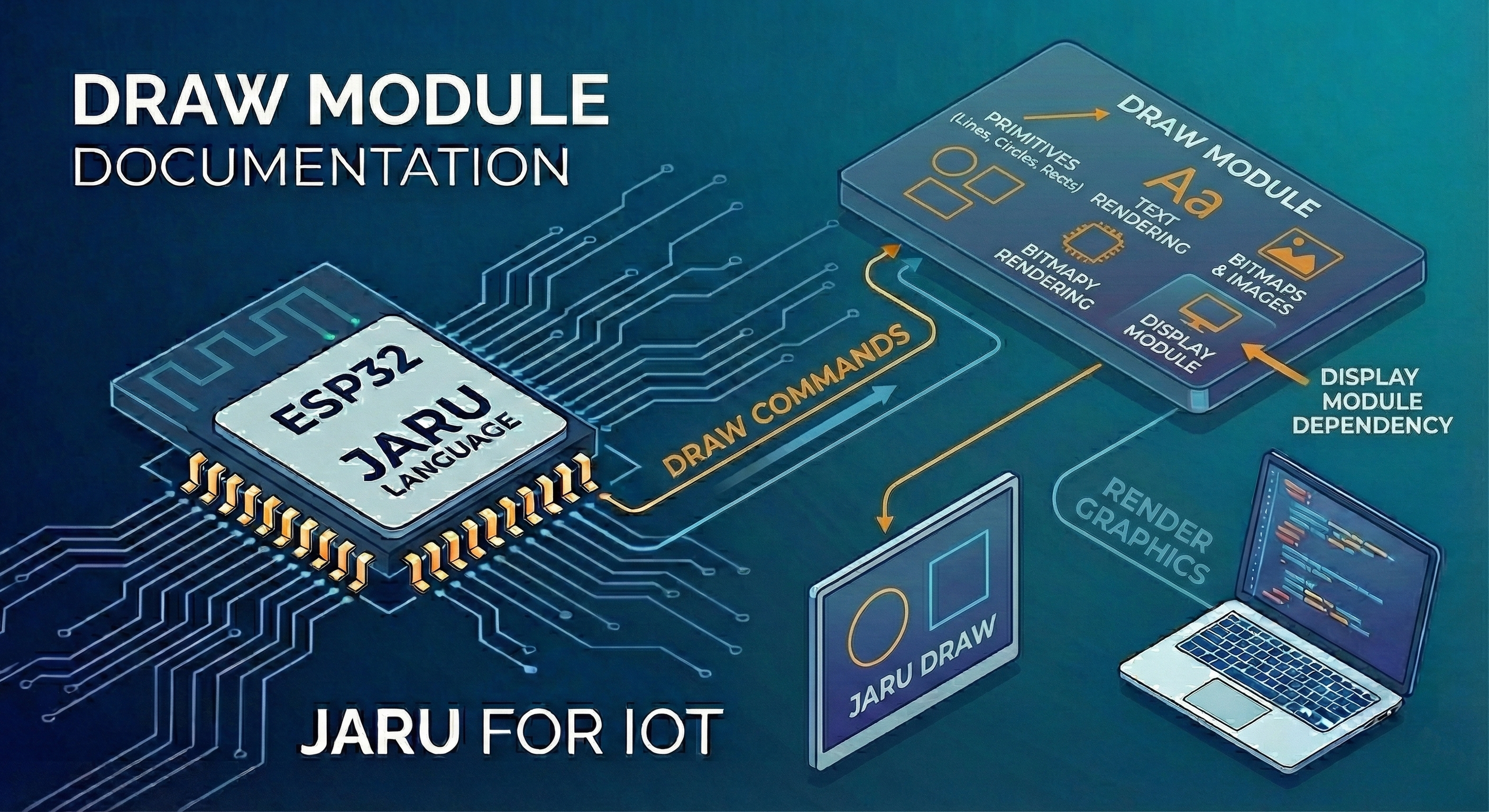
The Draw module is the JARU library responsible for drawing graphic primitives, text, and bitmaps on screen. This module depends on the Display module and is accessed through the Display.draw property.
Usage
use Display

Display.open(320, 240)
var draw = Display.draw

// Set color and draw
draw.color = 0xFF0000
draw.circle(100, 100, 50)
The Draw module provides functions to draw geometric shapes, text, images, and sprites on the screen. All drawing operations are performed on the current buffer (backbuffer or direct screen depending on the mode configured in Display).
Colors
Colors in JARU are represented as 24-bit integer values in RGB format (0xRRGGBB). The active color is set through the draw.color property and is automatically applied to all drawing functions.
| Color | Value | Example |
|---|---|---|
| Red | 0xFF0000 | draw.color = 0xFF0000 |
| Green | 0x00FF00 | draw.color = 0x00FF00 |
| Blue | 0x0000FF | draw.color = 0x0000FF |
| White | 0xFFFFFF | draw.color = 0xFFFFFF |
| Black | 0x000000 | draw.color = 0x000000 |
Properties
color
Sets or gets the default drawing color. This color is used in all drawing functions.
// Set color
draw.color = 0xFF0000

// Get current color
var c = draw.color
colorBG
Sets or gets the default background color. This color is used with cls() when no explicit color is specified.
// Set background color
draw.colorBG = 0x000080

// Get current background color
var bg = draw.colorBG
Functions
cls
Clears the screen with the specified color or with the background color (colorBG) if none is provided.
draw.cls()           // Clears with colorBG
draw.cls(0x000000)   // Clears with black
| Parameter | Description |
|---|---|
color | Clear color (optional, uses colorBG by default) |
setPixel
Draws a pixel at the specified coordinates using the current color (draw.color).
draw.setPixel(100, 50)    // Draw pixel at (100, 50)
draw.setPixel([150, 75])  // Also accepts a list [x, y]
| Parameter | Description |
|---|---|
x, y | Pixel coordinates |
getPixel
Reads the color of the pixel at the specified coordinates.
var pixelColor = draw.getPixel(100, 50)
println("Color: ", pixelColor)
| Parameter | Description |
|---|---|
x, y | Pixel coordinates |
line
Draws a line between two points using the current color.
draw.line(x1, y1, x2, y2)
| Parameter | Description |
|---|---|
x1, y1 | Starting point coordinates |
x2, y2 | Ending point coordinates |
draw.color = 0xFFFFFF
draw.line(0, 0, 319, 239)    // White diagonal
draw.line(160, 0, 160, 240)  // Vertical line
circle
Draws a circle, outlined or filled, using the current color.
draw.circle(x, y, radius [, fill])
| Parameter | Type | Description |
|---|---|---|
x, y | integer | Center coordinates |
radius | integer | Circle radius |
fill | bool | true for filled, false for outline (optional, default false) |
draw.color = 0x00FF00
draw.circle(160, 120, 50)        // Green outline
draw.circle(160, 120, 50, true)  // Green filled
rect
Draws a rectangle, outlined or filled, using the current color.
draw.rect(x, y, width, height [, fill])
| Parameter | Type | Description |
|---|---|---|
x, y | integer | Top-left corner coordinates |
width | integer | Rectangle width |
height | integer | Rectangle height |
fill | bool | true for filled, false for outline (optional, default false) |
draw.color = 0xFFFF00
draw.rect(50, 50, 100, 80)        // Yellow outline
draw.rect(50, 50, 100, 80, true)  // Yellow filled
ellipse
Draws an ellipse, outlined or filled, using the current color.
draw.ellipse(x, y, radiusX, radiusY [, fill])
| Parameter | Type | Description |
|---|---|---|
x, y | integer | Center coordinates |
radiusX, radiusY | integer | Horizontal and vertical radii |
fill | bool | true for filled, false for outline (optional, default false) |
draw.color = 0xFF00FF
draw.ellipse(160, 120, 80, 40)        // Magenta outline
draw.ellipse(160, 120, 80, 40, true)  // Magenta filled
polygon
Draws a polygon defined by a list of vertices, outlined or filled.
draw.polygon(vertexList [, fill])
| Parameter | Type | Description |
|---|---|---|
vertexList | list | Coordinates in format [x1, y1, x2, y2, x3, y3, ...] |
fill | bool | true for filled, false for outline (optional, default false) |
draw.color = 0xFFFFFF
// Triangle outline
var vertices = [160, 50, 100, 150, 220, 150]
draw.polygon(vertices)

// Filled pentagon
draw.color = 0xFF8000
var penta = [160, 40, 200, 80, 185, 140, 135, 140, 120, 80]
draw.polygon(penta, true)
The vertex list must contain an even number of elements (pairs of x, y coordinates).
text
Displays text on the screen at the specified coordinates.
draw.text(x, y, text [, color])
| Parameter | Description |
|---|---|
x, y | Coordinates where to display the text |
text | Text string to display |
color | Text color (optional, uses draw.color if not specified) |
draw.text(10, 10, "Hello World", 0x00FF00)
draw.text(10, 30, "Score: 100")  // Uses draw.color by default
font
Gets or sets the current font for text.
// Get the current font
var f = draw.font()

// Set a new font
draw.font(2)
| Font | Description | Height | Characters |
|---|---|---|---|
0 | Small font (6x8 bitmap) | 8 px | Full ASCII |
1 | Default font (alias of 0) | 8 px | Full ASCII |
2 | Medium font | 16 px | 96 ASCII characters |
4 | Large font | 26 px | 96 ASCII characters |
6 | Clock font | 48 px | 0-9 : - . a p m |
7 | Seven-segment font | 48 px | 0-9 : - . |
8 | Huge font | 75 px | 0-9 : - . |
The range is 0 to 8. Any other value raises ERR_INVALID_VALUE.
Indices 3 and 5 exist for compatibility and are aliases of font 0.
These do not contain the alphabet: they are meant for clocks and scoreboards.
Any character not in the list is drawn as a space, it does not raise an error.
In font 6, the pipe character | is a narrow space, handy for aligning a clock
readout.
bitmap
Draws a Bitmap object at the specified coordinates, with optional rotation.
draw.bitmap(x, y, bitmap [, rotation])
| Parameter | Description |
|---|---|
x, y | Coordinates where to draw |
bitmap | Bitmap object to draw |
rotation | Rotation angle in degrees (optional, 0 by default) |
use Bitmap

var img = Bitmap.load("image.bmp")
draw.bitmap(100, 50, img)      // No rotation
draw.bitmap(100, 50, img, 45)  // Rotated 45 degrees
bitmapBatch
Draws the same bitmap at multiple positions in a single call. More efficient than calling draw.bitmap in a loop when many instances of the same graphic need to be rendered.
draw.bitmapBatch(bitmap, positions)
| Parameter | Description |
|---|---|
bitmap | Bitmap object to draw |
positions | Flat array with coordinates in format [x0, y0, x1, y1, ...] |
use Bitmap

var coin = Bitmap.load("coin.bmp")
var pos = [10, 20, 50, 20, 90, 20, 130, 20]

draw.bitmapBatch(coin, pos)  // Draws 4 coins in a single call
bitmapBatch is especially useful on ESP32, where it groups all SPI operations and only reads the sprite pixels once, considerably reducing rendering time.
sprite
Draws a single sprite, a list, or an array of sprites. Sprites automatically manage their animations and transformations.
draw.sprite(sprite)
draw.sprite(spriteList)
draw.sprite(spriteArray)
| Parameter | Description |
|---|---|
sprite | A single Sprite object |
spriteList | A list or array of sprites |
use Sprite

var s = Sprite.new()
s.addImage(Bitmap.load("frame1.bmp"))
s.addImage(Bitmap.load("frame2.bmp"))
s.x = 100
s.y = 100

draw.sprite(s)
The sprite automatically manages frame animation according to the animSpeed, animRepeat, and animPingPong properties. Automatic rotation is controlled with spin. Only sprites with the isActive = true flag and at least one assigned image are drawn.
bytes
Draws a block of bytes as an image using an indexed color palette.
draw.bytes(x, y, width, height, bytesObject, palette)
| Parameter | Description |
|---|---|
x, y | Coordinates where to draw |
width, height | Image dimensions in pixels |
bytesObject | Bytes object with the color indices (one per pixel) |
palette | Array with the palette colors (up to 256 entries in 0xRRGGBB format) |
var palette = [0x000000, 0xFF0000, 0x00FF00, 0x0000FF]
var data = Bytes.new(16)  // 4x4 pixels
// ... fill data with indices 0-3
draw.bytes(100, 100, 4, 4, data, palette)
gridBitmap
Draws a bitmap in each cell of a GridMap whose value matches the specified one. Useful for rendering specific elements of a tile map.
draw.gridBitmap(gridMap, value, bitmap, x0, y0, stepX, stepY)
| Parameter | Description |
|---|---|
gridMap | GridMap object with the map data |
value | Value (0–255) that the cell must have for the bitmap to be drawn |
bitmap | Bitmap to draw in matching cells |
x0, y0 | On-screen position of cell (0, 0) of the grid |
stepX, stepY | Distance in pixels between cells |
use GridMap, Bitmap

var map = GridMap.new(10, 10)
var wall = Bitmap.load("wall.bmp")

// Draw the "wall" bitmap in each cell with value 1
draw.gridBitmap(map, 1, wall, 0, 0, 16, 16)
tilemap
Draws a complete GridMap using a sprite sheet (tileset). Supports scrolling, off-screen tile culling, and wrapping on both axes.
draw.tilemap(gridMap)
draw.tilemap(gridMap, tileset)
draw.tilemap(gridMap, tileset, emptyTile)
| Parameter | Description |
|---|---|
gridMap | GridMap object with tile indices and scroll position |
tileset | Bitmap with the sprite sheet (optional if the grid has one assigned via grid.tileset) |
emptyTile | Tile index considered empty and not drawn (optional, uses the grid's default) |
use GridMap, Bitmap

var map = GridMap.new(20, 15)
map.setTileSize(16, 16)

var tileset = Bitmap.load("tiles.bmp")
map.tileset = tileset

// With tileset linked to the grid
draw.tilemap(map)

// With explicit tileset and custom empty tile
draw.tilemap(map, tileset, 0)
The scroll position is controlled through the grid.x and grid.y properties. The tilemap applies automatic culling to render only the visible tiles.
scene
Draws a complete scene: the background GridMap (if any) followed by all its active sprites, applying culling and camera transformations.
draw.scene(scene)
| Parameter | Description |
|---|---|
scene | Scene object to render |
use Scene

var myScene = Scene.new()
// ... configure scene, camera and sprites

draw.cls()
draw.scene(myScene)
Display.update()
The scene camera (scene.cameraX, scene.cameraY) is automatically applied to both the GridMap and all sprites. Only sprites marked as active and visible within the camera area are drawn.
Complete Example
use Display

Display.open(320, 240)
Display.mode(2)  // Double buffer

var draw = Display.draw

// Set default colors
draw.color   = 0xFFFFFF
draw.colorBG = 0x000020

while (true)
    // Clear screen with background color
    draw.cls()

    // Filled red rectangle
    draw.color = 0xFF0000
    draw.rect(20, 20, 80, 60, true)

    // Green circle outline
    draw.color = 0x00FF00
    draw.circle(160, 120, 40)

    // Filled blue circle
    draw.color = 0x0000FF
    draw.circle(260, 60, 30, true)

    // Yellow line
    draw.color = 0xFFFF00
    draw.line(0, 200, 319, 200)

    // Text
    draw.text(10, 220, "JARU Graphics Demo", 0xFFFFFF)

    // Update screen
    Display.update()
    pause(16)
end

Display.close()