Scene editor
The scene editor is where you design the rooms of a game: each level, each screen. In a room you place tilemaps, backgrounds and objects, give them behaviours and rules without writing code, and try it with Play without leaving the editor.
Each room is a .scn file in the project's Scenes folder. When you save it, the IDE translates it into plain JARU code, in the Code folder, and your game imports that code.
If this is your first game with rooms, Your first game with rooms makes one from start to finish: the rooms, the code they generate and the game loop.
Creating and opening a room
- To create a room, right-click in the project explorer and choose New Scene, or press the New Scene button on its bar. Type the file name: the
.scnis created in Scenes, or in the folder you have selected in the explorer (see Projects). - The new room opens by itself, with a tile layer (
Tiles) and an object layer (Objects). If the editor was showing another room, the new one copies its Room settings: the size, the grid, the screen, the background, the music, the camera and the physics. It does not copy the collision map, what the camera follows, the variables or the code. - Give it a name without spaces or accents: the names of its code and its functions come from it (Your first game with rooms explains it).
- To open a room, double-click its
.scnin the explorer. If it is already open, the editor switches to its tab. - The Scenes button on the ribbon (Home tab, View panel) opens the editor window, or brings it to the front.
- Close, on the editor's bar, closes the room you are looking at. If it has unsaved changes, it asks first.
The window
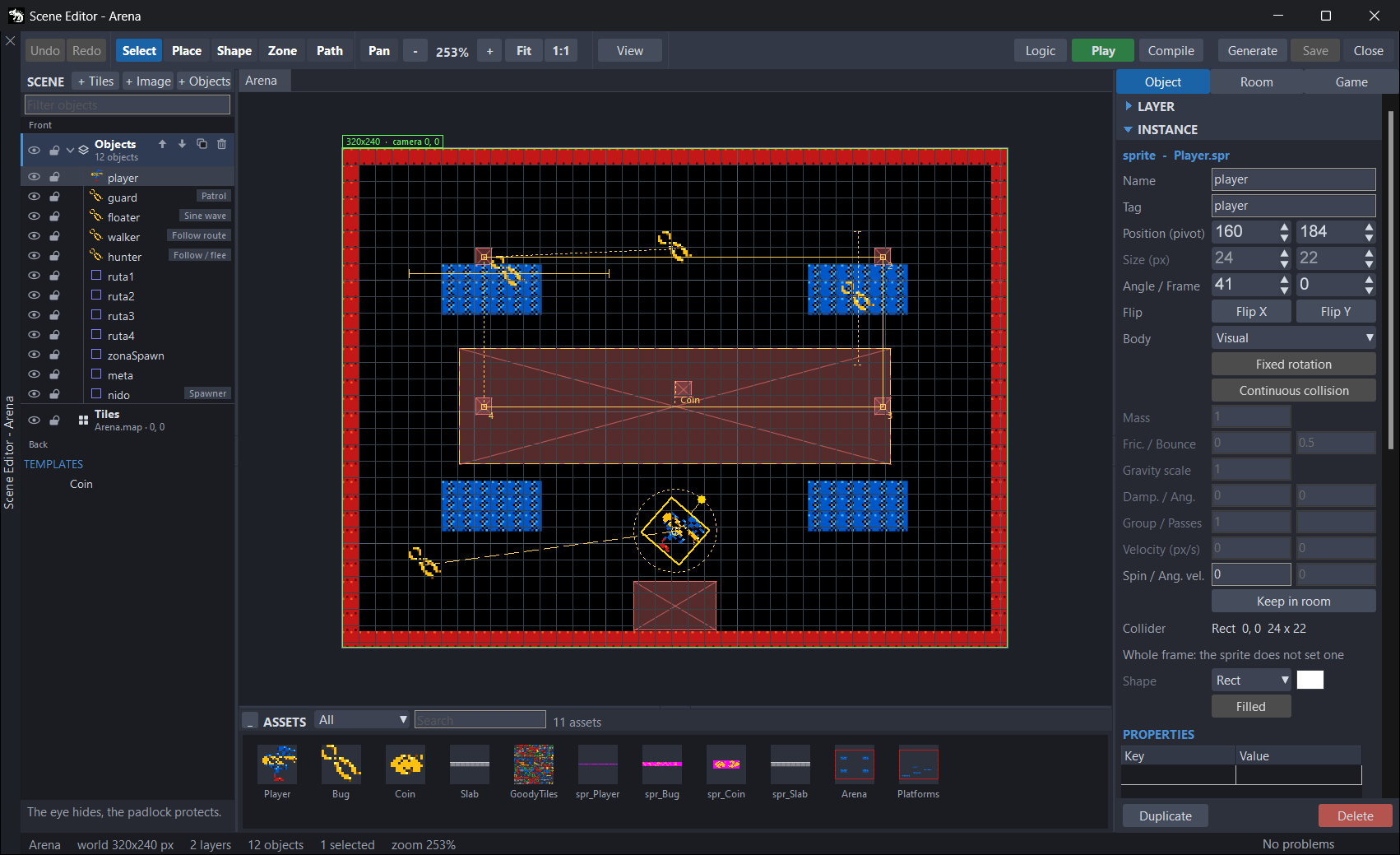
- The toolbar, at the top. On the left, Undo and Redo, the tools, the zoom and the View menu. On the right, Logic (the rules of the room), Play, Compile, Generate, Save and Close.
- The room tabs, above the canvas: one for each open room, with the name of its file. A
*after it means it has unsaved changes. - The canvas, in the middle: the room with all its layers, with a margin around it. The green frame is the screen of the device.
- The SCENE panel, on the left: the layer tree, from Front (what is painted in front) to Back (the background), with the objects of each layer under it. At the top, the + Tiles, + Image and + Objects buttons, which add layers, and the Filter objects box, which filters the objects by name or by tag. Layers explains the eye and the padlock of each row.
- The right panel, with three tabs:
- Object: the LAYER section, with the active layer, and the INSTANCE section, with the selected object. Below them, Duplicate and Delete. When you select an object, LAYER folds to make room for it; a click on the header of a section folds or unfolds it.
- Room: the ROOM section, with the settings of the room.
- Game: the GAME section, with what every room of the game shares.
- The ASSETS strip, under the canvas: the sprites, images, tilemaps and music of the project, with a filter (All, Sprites, Images, Tilemaps and Music) and a Search box. A sprite or an image is placed with Place, by dragging it onto the canvas or with a double-click; a tilemap, by dragging it or with a double-click; a piece of music, with a double-click, and it becomes the music of the room. The button on its header folds it.
- The status bar, at the bottom: the name of the room, its size, how many layers, objects and selected objects it has, and the zoom. With the mouse over the canvas, its coordinates and the cell under it. On the right, the button of the problems panel.
The pages of this manual
This page covers the window, the canvas and the tools. The rest is in:
- Layers: tile, image and object layers, and the order in which they are painted.
- Objects: placing sprites, images, shapes and zones; their body and their collider; properties, templates and the code of each object.
- Behaviours: the twelve you add to an object without writing code, such as Patrol or Platform control.
- Rules and states: the rules of the room (Logic: when something happens, do something) and the state machines of objects.
- The room and the game: the Room tab (music, collision, camera, physics, variables and creation code) and the Game tab, with what belongs to the whole game.
- The code it generates: the
.gen.arufiles, rooms as data and how it all mixes with your code.
To use the rooms from your code there are the Scene, Sprite and GridMap modules.
Tools
The bar changes with the active layer, the one you select in the tree. With an object layer you get Select, Place, Shape, Zone and Path; with a tile or image layer, only Move. Pan is always there. The keys 1 to 6 pick a tool when the focus is not in a field.
| Tool | Key | What it does |
|---|---|---|
| Select | 1 | Selects objects and moves them. Dragging on an empty spot draws a marquee. With one object selected, its handles appear. |
| Place | 2 | Each click places on the active layer the sprite or image you have selected in ASSETS. With Snap to the grid it lands aligned to the cell you click. A see-through copy shows where it will land. A click on an object of the same asset selects it, instead of placing another one on top. |
| Shape | 3 | Drag to draw a shape; a single click makes one of one cell. Its kind, its colour and whether it is filled are chosen in INSTANCE. |
| Zone | 4 | Drag to mark a zone: a rectangle the rules watch, such as an exit. The game does not draw it, unless Show in game is on. A single click marks one cell. |
| Pan | 5 | Drag to scroll the view. |
| Path | 6 | Draws a route, the one the Follow route behaviour follows. Each click adds a node, a click on a segment inserts one, and a node moves when you drag it. Del removes the node under the mouse, or the last one. Esc, Enter or a double-click end it and go back to Select. |
| Move | With a tile or image layer active: drags the whole layer. With Snap to the grid, a tile layer snaps to the cells of its map. |
The details of each thing you place are in Objects and in Layers.
The canvas
Zoom and scrolling
- - and +, on the bar, or the
-and+keys: zoom out and in.Ctrland the mouse wheel do the same towards the cursor: what is under it stays under it. - The zoom goes from 10 % to 800 %. The number on the bar shows the current one.
- Fit (
F) fits everything in the view: the room and the maps that stick out of it. - 1:1 (
Ctrl+0) goes back to 100 %. - To move around the room: the scroll bars, the Pan tool, or dragging with
Spaceheld down or with the middle mouse button, with any tool. - The editor remembers the zoom and the active layer of each room, also from one session to the next. It does not remember where you were: when you switch tabs, the scroll bars stay where they were.
Ffits the room.
The View menu
The View button opens a menu with what the canvas shows and with the two snapping settings. The editor remembers it from one session to the next.
| Option | Default | What it does |
|---|---|---|
| Snap to the grid | On | What you place, move or stretch snaps to the Room › Snap (px) grid. |
| Grid | On | Paints that grid inside the room, with one line in eight stronger. |
| Device screen | On | The green frame, the size of Room › Screen (px): what fits on the screen of the device. Its label can be dragged: that way you see what the camera would show at another point of the room and how the layers with parallax scroll there. |
| Camera bounds | On | The camera bounds, as a dashed line, if the room uses them (Use bounds). |
| Colliders | Off | The collision boxes of every sprite and image. The one of the selected object always shows. |
| Object names | Off | The name of each object, above it. |
| What the behaviours do | On | Draws what each behaviour does, without running anything: how far a patrol goes, the route an object follows… The state machines too. |
| Snap to other objects | On | While you drag, what you move sticks to the edges and centres of the other objects and of the room, and a guide shows it. |
Alt, while you drag, releases both kinds of snapping.
Selecting objects
- With Select, a click selects the object you see in front, on any visible, unlocked layer.
Shiftand click adds an object to the selection, or removes it.- Dragging on an empty spot draws a marquee, which selects the objects of the active layer it touches. With
Shift, it adds them to the ones you had. Ctrl+A(Select all in the layer) selects every object of the active layer.- In the tree, a click selects the object and makes its layer active.
Ctrland click adds it or removes it;Shiftand click selects all the ones between the main one and it, in that layer. Escempties the selection.- With several objects selected, the last one you clicked is the main one: it is the one INSTANCE shows and the one that leads when you drag the group.
- Hidden or locked objects cannot be selected on the canvas: not with a click, not with the marquee, not with
Ctrl+A. In the tree, they can.
Moving, rotating and resizing
- Drag the selection to move it: the group moves together. With Snap to the grid it snaps to the grid, and with Snap to other objects, to the other objects.
Altreleases both while you drag. Ctrland drag clones: it duplicates the selection and moves the copy. PressCtrlbefore you start dragging.Eschalfway through a drag cancels it: everything goes back to its place.- The arrow keys move the selection one grid step, or one pixel with
Shiftor without Snap to the grid. With a tile or image layer active, they move the whole layer. - With a single object selected, its handles appear. A shape or a zone has eight, to change its size. A sprite or an image has one above it, to rotate it; with
Shift, it turns in steps of 15 degrees. A sprite or an image does not change size: the VM does not scale them. HandVflip the main object, like Flip X and Flip Y. On a route, they mirror it.PgUpandPgDnmove the selection one place up or down in the drawing order of its layer;HomeandEndtake it to the very front or the very back.
Copying, deleting and undoing
Ctrl+C,Ctrl+XandCtrl+Vcopy, cut and paste objects, also from one room to another. What you paste goes to the active layer, which has to be an object layer. In the same room it comes out shifted one grid step; from another room, in the same place it had. If its name already exists in the room, the copy gets another one.Ctrl+Dor Duplicate duplicates the selection, shifted one grid step.Delor Delete deletes the selection, without asking.Ctrl+Zbrings it back.- Undo (
Ctrl+Z) and Redo (Ctrl+Y) go through the history of the room, up to 60 steps. Each room has its own. With the Game tab in view, they undo and redo the changes to the game, which has its own history. - Quick taps on the arrows, in a field or moving objects, count as a single step. The eye and the padlock do not go into the history.
The context menu
A right-click on the canvas opens this menu. If you click outside the selection, the selection first becomes what is under the mouse, or nothing.
| Option | What it does |
|---|---|
| Cut, Copy and Paste | Like Ctrl+X, Ctrl+C and Ctrl+V. |
| Duplicate | Like Ctrl+D. |
| Delete | Like Del. |
| Bring to front, Bring forward, Send backward and Send to back | The drawing order inside the layer, like Home, PgUp, PgDn and End. |
| Align | Aligns the selection by the edges or by the centres, with two objects or more. Distribute horizontally and Distribute vertically spread their centres evenly, with three or more. |
| Move to the active layer | Takes the selection to the active layer, if it is an object layer. |
| Snap to the grid | Takes the selection to the grid. |
| Delete this route node and Reverse the route | Only with a route selected: they remove the node under the mouse or turn the route around. |
| Select all in the layer | Like Ctrl+A. |
The tree has its own menu. On the row of a layer, Rename, Duplicate, Delete, Move the layer forward and Move the layer back act on the layer; on the row of an object, Rename, Duplicate, Delete, Bring forward and Send backward act on the selected objects. Layers covers it.
Save, generate, play and compile
- Save (
Ctrl+S) saves the room to its.scnand, if you changed something in the Game tab,Scenes/Game.jsontoo. If the room has Generate .aru on (Room › BUILD), which is the default, it also writes the code to Code; The code it generates covers what it writes. The button goes dim when there is nothing to save. - Generate (
Ctrl+G) saves the room and writes its code right away, even with Generate .aru off; then the status bar warns that a Build will not keep it up to date. The status bar says which file it wrote and theimportyou have to put in your game. - Play tries the room on its own. It saves it, compiles it with a test program that is not part of the project and runs it in the Windows VM, even if the Target is a board. It is not your game: there is no menu, no lives and no ending; it loads the room, moves its behaviours, applies its rules and paints it.
Esccloses the preview.- If the room asks for another one with Ask for another room, the preview loads that one too.
- What it prints shows in the IDE's Output window.
- If it does not compile, the error comes first in the problems panel, which opens by itself.
- With Generate .aru off there is nothing to play.
- Compile saves the open rooms and compiles the whole game, like Build › Compile, without running it. When it finishes, the status bar says whether it compiled; the errors are in Output and in the error list.
All four also take what you were typing in a field or in a code window. A room saved by a newer IDE opens read-only: the status bar says READ ONLY, and it is neither saved nor played, although Generate does write its generated code again.
The problems panel
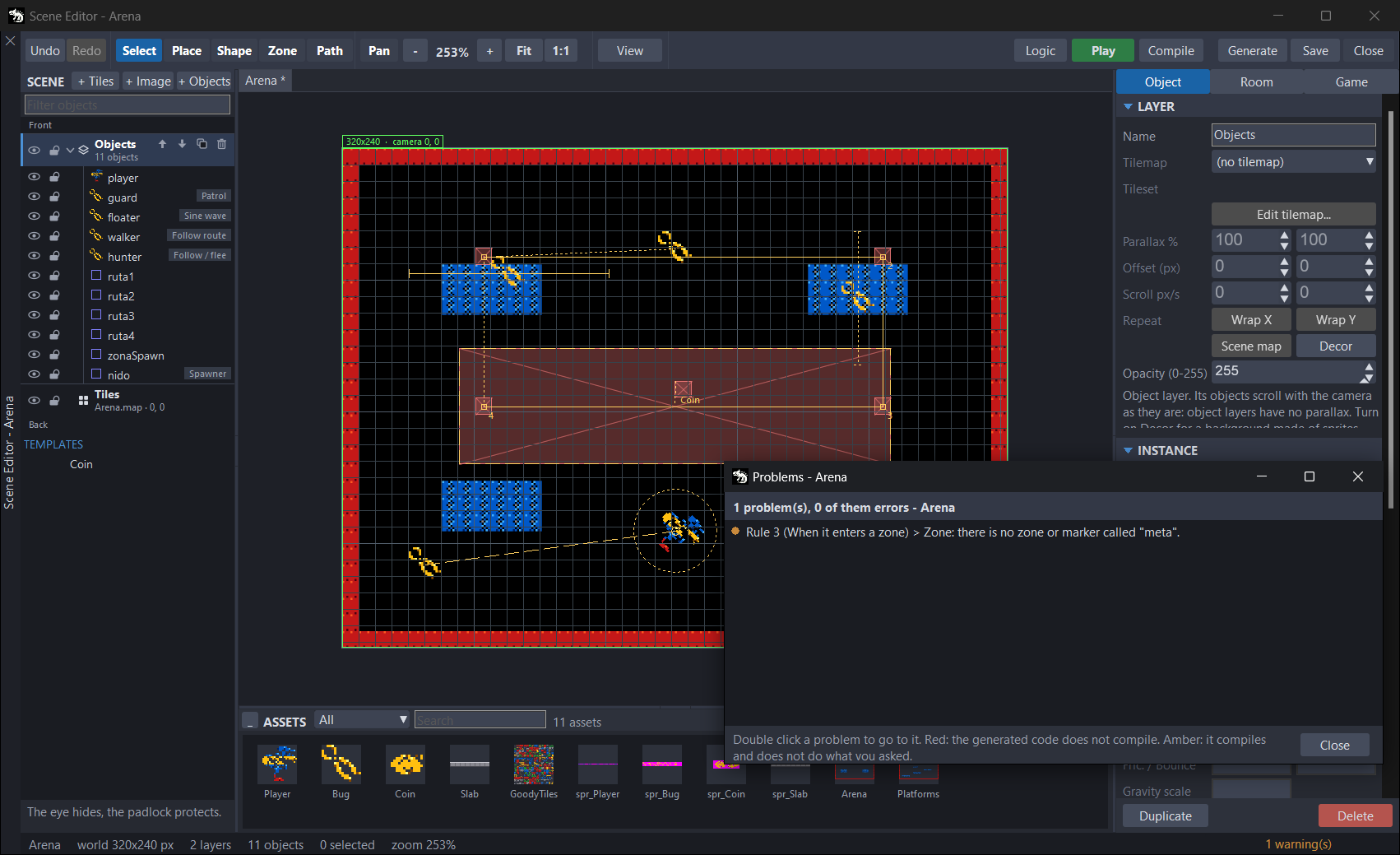
The button on the right of the status bar sums up what the editor sees wrong in the room. It says No problems, or how many errors and warnings there are: 1 error(s), 2 warning(s), for example. It turns red if there are errors and amber if there are only warnings. The editor checks the room again by itself while you work.
A click on the button opens the Problems window, with the list:
- a red dot is an error: the code the room generates does not compile;
- an amber dot is a warning: it compiles, but it will not do what you asked.
The window does not stop you working: you can leave it open and watch it empty while you fix things. A double-click on a problem, or Enter, takes you to where it is fixed: it selects the object and shows it on the canvas, makes the layer active, opens the Room tab or the Room logic window of the rules. Esc or Close close it.
It opens by itself when Play does not compile. The compiler error comes first, in red; if it is in your code (the creation code of the room or the code of an object), the double-click opens that window at its line.
If a warning asks for a game control that does not exist, the Create missing controls button appears, and it creates it in the Game tab.
What it checks
- What cannot be found: a behaviour, a rule or a state that names an object, a zone, a tag, a variable, a template, a piece of music or a control that does not exist, or that has nothing chosen.
- What is no longer in the project: the sprite or image of an object, the map or image of a layer, the collision map or the music of the room.
- Names that clash in the code: two objects, two tags or two variables that get the same name in the generated code, or two rooms that would write the same file.
- Behaviours that cannot do what they ask for: one that needs the room's physics when the room has none, or a body that cannot move the way it asks.
- Collision: Solid values or One-way values that are not numbers, or a layer that paints the collision map with parallax, with its own scroll or with Wrap X / Wrap Y.
- Routes and the camera: a route with no tag, with fewer than two nodes or with the tag of another one; the camera following an object that is gone.
- The game: a board Target on which no control has a button, a game frame rate that is too low (Game tab), a function in Call a function of yours that is not in the project's code, or Generate .aru off.
Shortcuts
They work with the focus in the editor window. With the focus in a text field, a grid or a drop-down list, the keys belong to the field and only Ctrl+S and Ctrl+G work. In the tree, the arrow keys go through the rows. The Room logic, States and code windows have their own keys: these do not work there, and to save you have to go back to the editor.
Keyboard
| Key | What it does |
|---|---|
1 to 6 | Pick Select, Place, Shape, Zone, Pan or Path, in that order (the numeric keypad works too) |
Space, held down | Scroll the view by dragging, with any tool |
+ and - | Zoom in and out |
F | Fit: fit everything in the view |
Ctrl+0 | 1:1: zoom to 100 % |
Ctrl+Z | Undo |
Ctrl+Y | Redo |
Ctrl+S | Save |
Ctrl+G | Generate |
Ctrl+C, Ctrl+X and Ctrl+V | Copy, cut and paste objects |
Ctrl+D | Duplicate the selection |
Ctrl+A | Select every object of the active layer |
Del | Delete the selection. With Path, remove a node of the route |
Backspace | With Path, remove a node of the route |
Esc | Cancel a drag; if there is none, empty the selection. With Path, end the route |
Enter | With Path, end the route |
F2 | Rename: goes to the Name field of the selected object or, with no object, of the active layer |
| Arrow keys | Move the selection one grid step, or the active tile or image layer |
Shift and arrow keys | The same, pixel by pixel |
PgUp and PgDn | Move the selection one place up or down in the drawing order |
Home and End | Take the selection to the very front or the very back |
H and V | Flip horizontally or vertically (Flip X, Flip Y) |
In the Problems window, Enter goes to the selected problem and Esc closes the window.
Mouse
| Mouse | What it does |
|---|---|
Ctrl and wheel | Zoom towards the cursor |
| Middle button and drag | Scroll the view |
Shift and click | Add an object to the selection, or remove it |
Shift and marquee | Add what the marquee touches to the selection |
Ctrl and drag | Clone the selection |
Alt and drag | Move without snapping to the grid or to objects |
Shift while rotating | Turn in steps of 15 degrees |
| Double-click with Path | End the route |
Ctrl and click in the tree | Add an object to the selection, or remove it |
Shift and click in the tree | Select all the objects between the main one and that one, in its layer |
| Right button | The context menu |
| Double-click in Problems | Go to the problem |
Known issues
- A room has two names. One is the name of its
.scnfile, which shows in the tab and in the room list of Ask for another room. The other is the Name field of Room, which names its.gen.aruand its functions. When you create the room they are the same, but changing one does not change the other: if you rename the room, change both to the same name. The.gen.aruwith the old name stays in Code: delete it and change theimportin your game. - A layer's padlock does not fully protect it. It only stops you from selecting its objects with a click on the canvas. The marquee,
Ctrl+Aand the tree do select them, and the selection moves with the arrow keys and is deleted withDel. Besides, Place, Shape, Zone, Path and Paste put objects on the active layer even if it is locked. The eye works the same way. To leave a layer untouched, do not keep it as the active layer and do not select its objects in the tree. - An object's eye takes it out of the game. On a layer, the eye only hides it on the canvas. On an object, it also stops it from being generated, and
Ctrl+Zdoes not undo it. If you hide one by mistake, click the eye again. Delwith a layer selected in the tree deletes the selected objects, not the layer. Clicking the row of a layer does not empty the selection: if there were objects selected,Deldeletes them without asking (Ctrl+Zbrings them back), andF2renames the object and not the layer. To delete a layer, use the bin on its row or Delete in the tree menu, which ask first; to rename it, Rename in that menu.Ctrlhalfway through a drag. If you pressCtrlonce the drag has started, the copy jumps and the original stays where you had taken it; oneCtrl+Zputs everything back. PressCtrlbefore you start. While you drag, do not press the right button or other keys: they still act, and onlyEsccancels the drag.- The canvas does not see the changes to a sprite or an image. If you retouch one with the scene editor open, the canvas and the ASSETS strip keep showing the old one, until you close the editor window and open it again. The same happens when you open another project without closing it: ASSETS shows thumbnails of the previous one. Tilemaps do update by themselves.
- The problems panel warns too much and too little. It also checks the rules and behaviours that are off, which are not generated. And it does not warn about an Ask for another room that asks for a room that does not exist (or that you renamed), nor about a template whose sprite you deleted.
- Play does not notice the assets you rename, move or delete. Your first game with rooms explains it, and how to avoid it.