Display Module
The Display module is the JARU library that provides functions and attributes to control a graphic display (TFT). This module is especially useful for programming electronic devices, such as microcontrollers and development boards, that require graphical interfaces to interact with the user or display information.
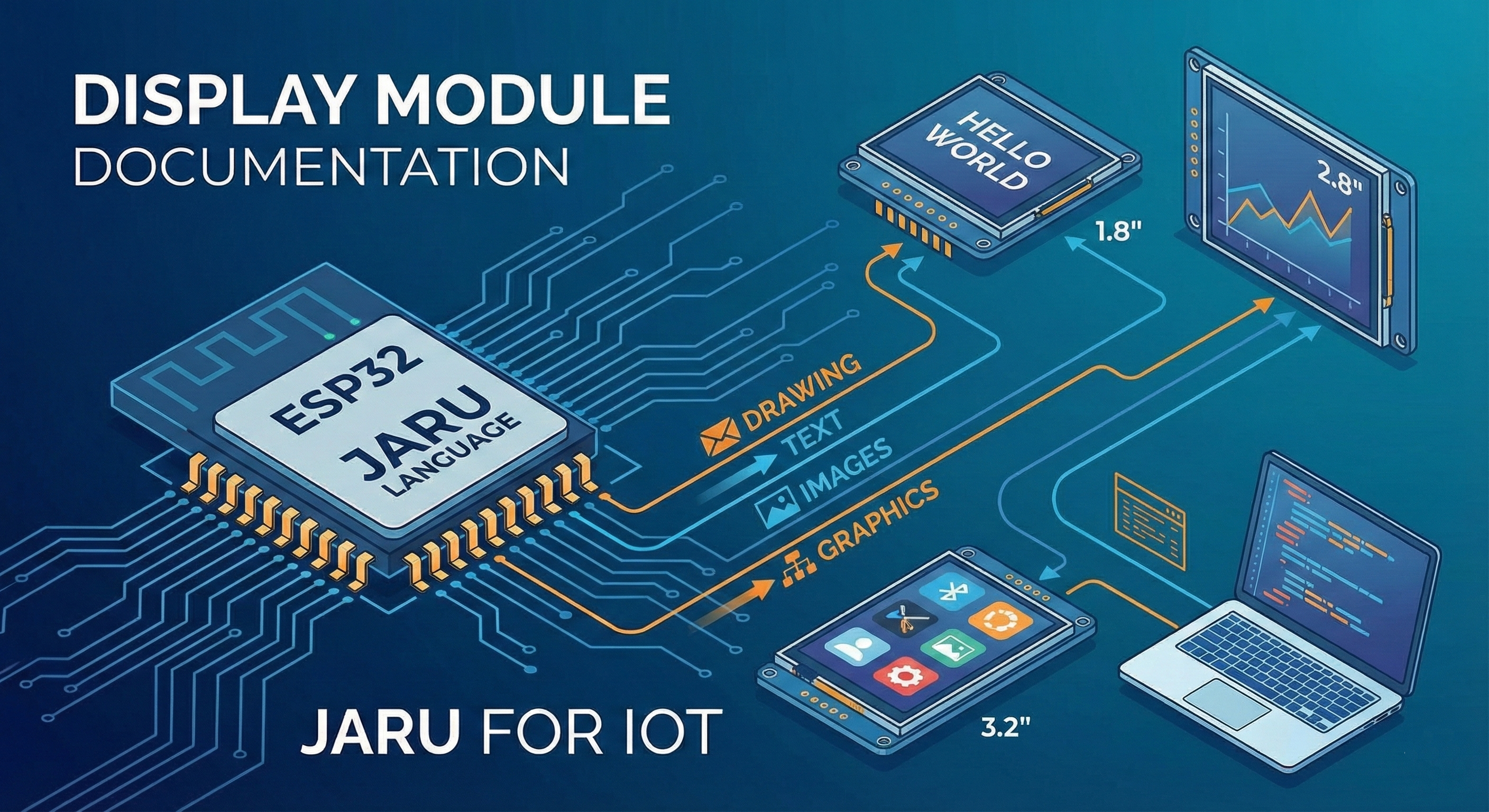
The Display module allows you to initialize a TFT display, configure its characteristics, and show images or animations on it. Additionally, it provides functions to rotate the display, turn the backlight on or off, manage backgrounds, and close the display when it is no longer needed.
Usage
use Display
To use the Display module, you need to import it into your JARU program. Then, you must initialize the graphic display using the open() function and configure its properties, such as the width and height of the screen and its orientation. Once the display is open, you can show images or animations using the update() function.
Functions
open
The open(width, height) function of the Display module opens a graphic display with the size specified by the parameters.
use Display

Display.open(320, 240)
In this example, the Display module is imported and the open() function is called to create a 320×240 pixel graphic display.
The open() function of the Display module with a TFT display connected to an ESP32 uses the configuration defined in the device's boot.cfg file. The actual resolution will be determined by the display controller and its interface.
In the case of the Windows VM, the screen resolution will be set to the width and height specified as parameters.
close
The close() function of the Display module is used to close the TFT display or the window (on Windows) that was previously opened using the open() function.
The close() function aims to release the resources that were allocated for the display during its use.
Display.close()
The close function should always be called after you have finished using the TFT display, otherwise the allocated resources will not be released.
update
The update() function of the Display module is used to update the content of the TFT display that was previously opened.
The update() function refreshes the display to show any changes that have been made to the screen content since the last update.
Display.update()
The update() function should be called after changes have been made to the screen content, otherwise there will be nothing to update, burdening the system with a call that consumes significant resources.
orientation
The orientation() command of the Display module is used to define the orientation of the TFT display.
| Value | Orientation | Description |
|---|---|---|
0 | 0 degrees | Portrait mode |
1 | 90 degrees | Landscape mode |
2 | 180 degrees | Inverted portrait mode |
3 | 270 degrees | Inverted landscape mode |
var value = 1
Display.orientation(value)  // Sets orientation to landscape mode
On ESP32, changing the orientation after initializing the display will automatically update the module's width and height properties.
backlight
The backlight function of the Display module is used to control the backlight of the TFT display.
Display.backlight(false)  // Turns off the TFT backlight
Display.backlight(true)   // Turns on the TFT backlight
The parameter can be true, false, or an integer. A value of 0 will completely turn off the backlight, while a non-zero value will turn it on.
The backlight parameter is not available on all TFT displays and its implementation may vary depending on the type of display and interface used. On ESP32, brightness control uses values from 0 to 255.
mode
The mode() function allows you to set or get the display drawing mode. JARU supports different rendering modes to optimize performance according to the application's needs.
| Mode | Description |
|---|---|
0 | Direct mode - Draws directly to the screen |
1 | Direct mode with solid background color |
2 | Double buffer mode (default) - Uses an intermediate buffer to avoid flickering |
// Get current mode
var currentMode = Display.mode()

// Set double buffer mode
Display.mode(2)
Double buffer mode (2) is recommended for animations and games, as it prevents screen flickering. Direct mode (0 or 1) may be faster for applications that don't require frequent updates.
loadBG
The loadBG(fileName) function loads a BMP image as the screen background. The background will be automatically drawn on each call to update().
Display.loadBG("background.bmp")
| Parameter | Description |
|---|---|
fileName | Name of the BMP file to load (must be in the Data folder) |
loadTFT
The loadTFT() function loads a BMP image directly into the display memory, without using the intermediate buffer. It's useful for displaying static images like skins or interface frames.
// Load image at default position (0, 0)
Display.loadTFT("skin.bmp")

// Load image at a specific position
Display.loadTFT(50, 100, "logo.bmp")
| Parameter | Description |
|---|---|
x | X position where to draw (optional) |
y | Y position where to draw (optional) |
fileName | Name of the BMP file to load |
Use loadTFT() for static interface elements that don't change frequently, such as frames or decorative backgrounds. This frees buffer memory for other dynamic elements.
Properties
posBG
The posBG=[x,y] property sets the position of the background loaded with loadBG().
// Set position with coordinates
Display.posBG=[10, 20]
| Parameter | Description |
|---|---|
x | X position of the background |
y | Y position of the background |
viewWidth
The viewWidth property allows you to get or set the width of the view area. The view is a rectangular region within the screen where drawing operations are performed.
// Get current view width
var width = Display.viewWidth

// Set a new width
Display.viewWidth=280
viewHeight
The viewHeight property allows you to get or set the height of the view area.
// Get current view height
var height = Display.viewHeight

// Set a new height
Display.viewHeight=200
The View is an important concept in JARU. It allows you to define a drawing area that can be smaller than the full screen. By default, the view is automatically centered on the screen. This is useful for:
- Creating game areas with decorative borders
- Simulating different resolutions on a larger screen
- Optimizing performance by drawing only in a reduced area
width
Returns the screen width in pixels.
var w = Display.width
println("Screen width: ", w)
height
Returns the screen height in pixels.
var h = Display.height
println("Screen height: ", h)
draw
Reference to the Draw module to access graphic primitive drawing functions.
var draw = Display.draw
draw.circlefill(100, 100, 50, 0xFF0000)
Complete Example
use Display

// Open display in landscape mode
Display.open(320, 240)
Display.orientation(1)

// Configure double buffer mode
Display.mode(2)

// Load a background
Display.loadBG("Images/background.bmp")
// Enable background painting
Display.showBG=true
// Set background position
Display.posBG=[0, 0]

// Get Draw reference
var draw = Display.draw

// Main loop
while (true)
    draw.color=0x00FFFF
    // Draw elements
    draw.circle(160, 120, 30, true)
    draw.color=0xFF0000
    draw.rect(50, 50, 270, 190)

    // Update screen
    Display.update()

    pause(16)  // ~60 FPS
end

// Close display when done
Display.close()