Your first program
If you have followed Installation, you have already created a project and run it. Here you write a small program and do with it what you will always do in the IDE: run it and see what it prints, understand an error, and stop the program to look at its variables. All of it on Windows, with no board.
Create the project
-
Open the project wizard (Project Wizard). It shows up when JARU IDE starts; if you have a project open, click Home › Project › New.
-
Click New Project, type
Tutorialin Project Name and click Finish. The rest of the form can stay as it is: each field is described in Projects. If you have done this walkthrough before, you already have aTutorialproject: Finish tells you so and leaves it alone. Use another name, such asTutorial2. -
The IDE creates the folder
Documents\JARUProjects\Tutorialand opens the main file,Code/Tutorial.aru, in the code editor: the one that Run compiles and runs. It comes with a header of comments and a test line, like the one from the installation. Delete all of it and type this program:var total = 0
for (var i = 1; i <= 5; i = i + 1)
total = total + i
println("i = ", i, " total = ", total)
end
println("Total: ", total) -
Save with
Ctrl+S. While there are unsaved changes, the tab has an asterisk after the name.
The program adds up the numbers from 1 to 5. In each round of the for, println writes its arguments one after the other and ends the line. The folders of the project are described in Projects.
Run it
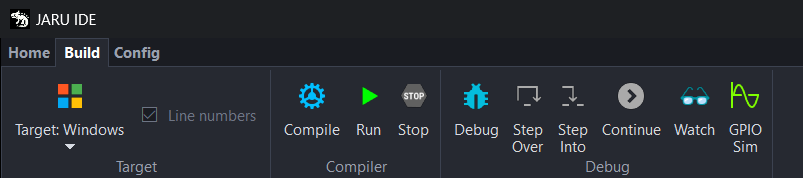
On the Build tab, the button of the Target group says Target: Windows: the program runs on the Windows VM.
-
Click Run. The program isn't compiled yet, so the IDE compiles it first. The Output, at the bottom, tells you how it goes and says
[Build completed successfully in … ms]. -
A console opens, and the program runs in it. First come the messages the VM shows when it starts: its banner, its version and the loading of the program, which ends in
Checksum verified successfully. After them comes what the program prints:i = 1 total = 1
i = 2 total = 3
i = 3 total = 6
i = 4 total = 10
i = 5 total = 15
Total: 15 -
When the program ends, the console says
Execution finished. Press any key to continue…and waits. Press a key to close it.
What the program prints goes to its console, not to the Output. That is also where you type if the program asks you for something with readLine. While the console is open, the IDE counts the program as running: Compile, Run and Debug are greyed out, and Stop closes the program and its console.
Run compiles first when it needs to: if the program isn't compiled, or if you have saved code since it was compiled. Whatever you haven't saved is left out, so save before you run. To compile without running, click Compile. The buttons of the tab are described in The interface.
A deliberate error
A program can fail in two ways: when it is compiled, and then it never runs, or while it runs.
An error when compiling
-
Delete the last parenthesis of line 4, the one that closes the
println:var total = 0
for (var i = 1; i <= 5; i = i + 1)
total = total + i
println("i = ", i, " total = ", total
end
println("Total: ", total) -
Half a second later, the editor underlines
total, on line 4, with a red wave: the IDE checks the code as you type, without compiling. The Error List, in the tab next to the Output, lists it: Parser under Stage, 4 under Line, and the messageInvalid function parameters, expected ")" not "total". Double-click the row and the editor goes to that spot. -
Save and click Run. The IDE compiles again, and this time the compiler stops. The program never runs: no console opens. At the end of the Output, in red:
[ERROR] Parser (5:1): In file Code/Tutorial.aru, expect to be special: ')' not : end
[Compilation failed with 1 errors. Time: 0 ms]
First error: Parser (5:1): In file Code/Tutorial.aru, expect to be special: ')' not : end
[Cannot run the program: build failed]
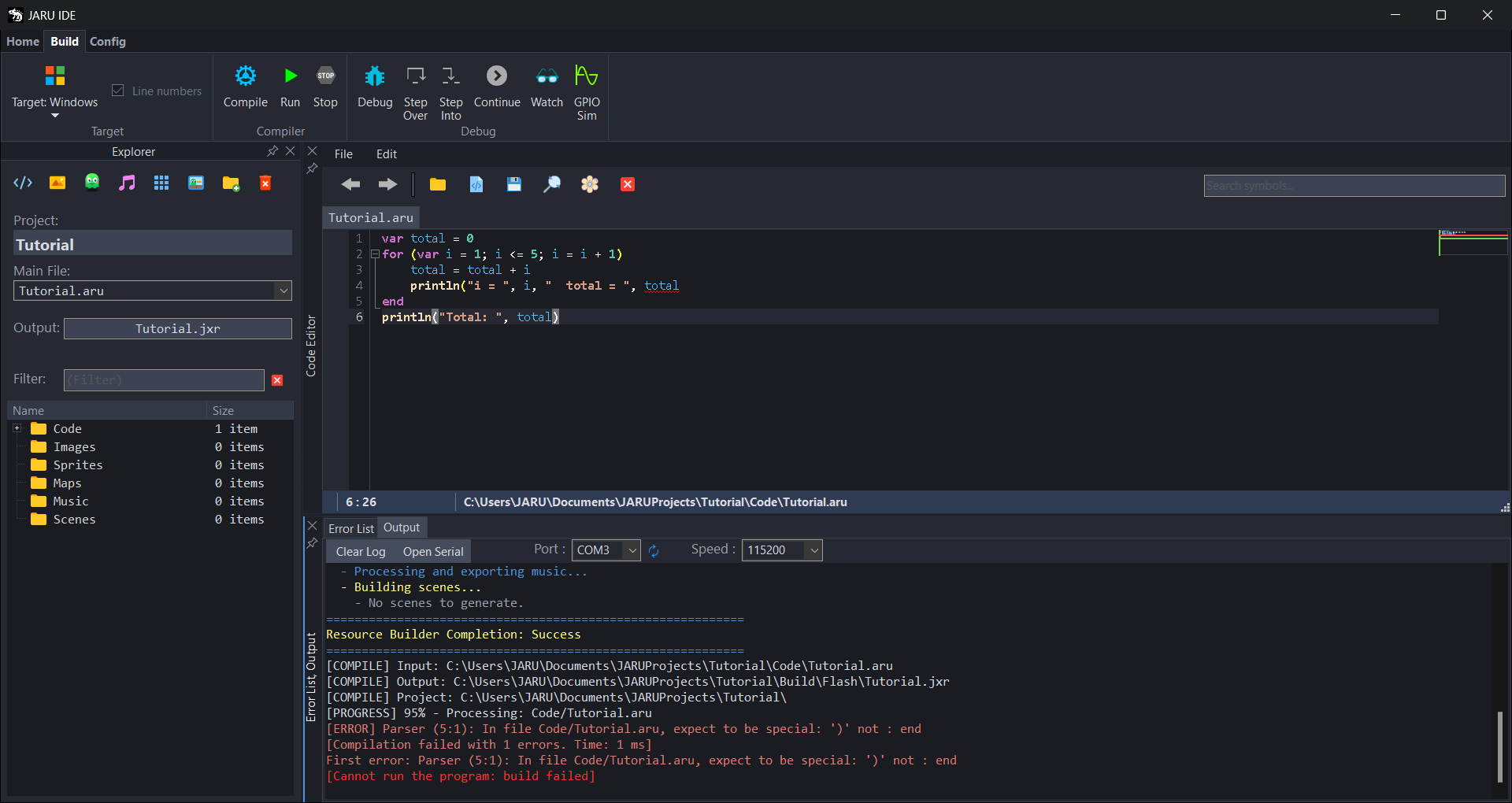
How to read the first line:
Parseris the part of the compiler that found the error. The file comes after it:In file Code/Tutorial.aru.(5:1)are the line and the column where the compiler noticed: theendon line 5.expect to be special: ')'is what it expected: the parenthesis that closes theprintln. Afternot :comes what it found instead: theend.
The parenthesis is missing at the end of line 4, where the editor marks it. The compiler reports the error where it finds something it doesn't expect, and that can be on the next line: if you don't see the mistake on the line of the error, look at the one before.
Put the parenthesis back and save: the red wave goes away.
An error when running
Other errors only show up with the program running, when it reaches them. A misspelled name, for example.
-
On the last line, change
printlntoprinln:var total = 0
for (var i = 1; i <= 5; i = i + 1)
total = total + i
println("i = ", i, " total = ", total)
end
prinln("Total: ", total) -
The editor underlines it, and the Error List says
Call "prinln" is not defined., with Semantic under Stage. The compiler, however, doesn't check this: save and click Run, and the build ends fine. Right after, the Output warns you in yellow about what the editor marks:[Warning] The code editor marks 1 error(s) in the project that the compiler does not check; a program that gets to one stops there:
Tutorial.aru (6:1): Call "prinln" is not defined. -
The program starts in its console, writes its five rounds and, when it gets to line 6, stops. After the line
JARU VM execution ended., the console shows the error:====================================================================
UNHANDLED EXCEPTION
====================================================================
Type : Unhandled exception.
Exception : ERR_NAME_NOT_FOUND
Message : Undefined variable 'prinln'.
Location : line 6 in <main>()
---------------------- EXECUTION TRACE ----------------------
1. line 6 in <main>()
------------------------------=====----------------------------
[ JARU VM terminated execution due to a critical error ]
====================================================================The Output repeats it in red, under
[Run] The program wrote these errors (also in its console):.
How to read it:
Exceptionis the kind of error:ERR_NAME_NOT_FOUND, a name that doesn't exist.Messagesays what happened. The VM looks up functions like any other name, which is why it saysvariableeven though it is a function.Locationsays where: on line 6, inside<main>(), which is the code outside the functions.EXECUTION TRACEis the path to the error. If it happens inside a function, there is a line for each call, from the innermost one to<main>().
The line shows up because the Line numbers checkbox, in the Target group, is on, as it comes by default. If you turn it off, the error says line -1.
Other errors at run time show up the same way. Dividing by zero, for example, gives ERR_DIVISION_BY_ZERO with the message Division by zero.
Fix prinln, save and click Run again.
A breakpoint
A breakpoint stops the program at a line, before running it, so that you can look at its variables. Here is the first use; the whole debugger is described in Debugger.
-
Put the cursor on line 3 (
total = total + i) and pressF9, or click the left edge of the margin, next to the line number. A red mark appears. -
Click Debug, on the Build tab, or press
F5with the cursor in the editor. The IDE compiles the program and starts it in its console, to debug it. -
The program stops at line 3, before running it. The editor highlights it, the IDE comes to the front and the Output says where it is:
[Paused at line 3 of Tutorial.aru. The game waits: Step or Continue it from the Build tab.] -
Click on
totalin the editor, then right-click and choose Add Watch. The Watch window opens with the variable:totalis 0, because line 3 hasn't run yet. Addithe same way: it is 1. -
Click Step Over, on the Build tab (or press
F10with the cursor in the editor). The program runs line 3 and stops at line 4. Watch says thattotalis now 1. -
Click Continue (or press
F5). The program carries on, the console writesi = 1 total = 1, and it stops again at line 3, in the next round:iis 2. -
Remove the breakpoint with a click on the red mark, or with
F9on its line, and click Continue. The program ends, and the Output says[Debug session ended]. Its console waits for a key to close. To end it earlier, click Stop: it closes the program and its console.
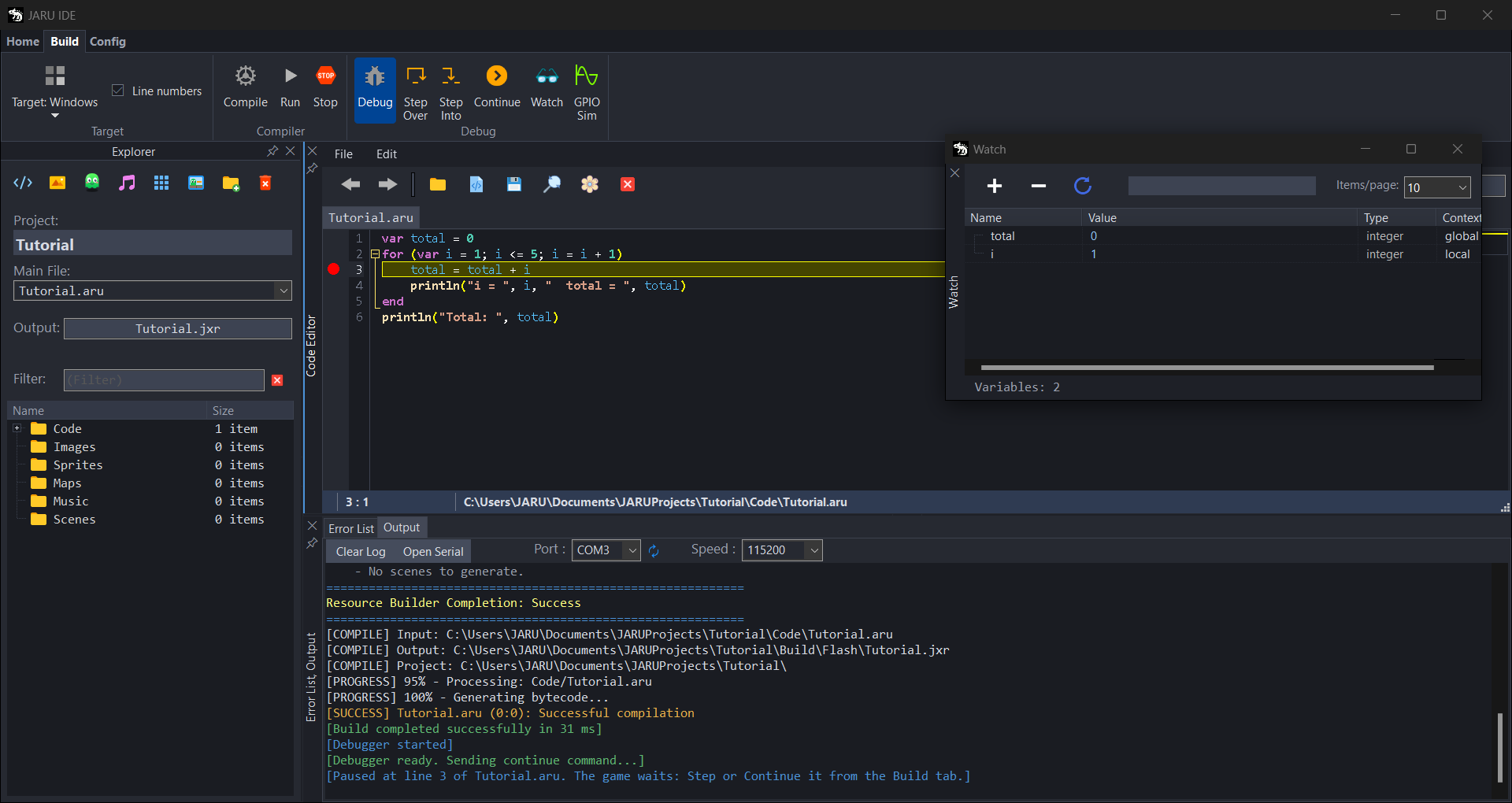
In Watch, each variable also shows its type and its context. How to add and remove variables: Debugger.
Where the program goes
When it compiles, the IDE turns your code into the program that the JARU VM runs: the .jxr file. Run and Debug don't run the .aru, which is the text, but this file.
- It goes into the
Build/flashfolder of the project, with the name of the main file:Documents\JARUProjects\Tutorial\Build\flash\Tutorial.jxr. When it compiles, the Output says so in the[COMPILE] Output:line, and the explorer shows it in its Output field. - Next to it are
Tutorial.jxd, with what the debugger needs to know which line the program is on and what its variables are called, andboot.cfg, the settings of the Windows VM (Config › Platform › Windows), which the IDE copies there on every Run on Windows. If the project has images, sprites, tilemaps or music, when it compiles the IDE leaves in the same folder what the program needs from them. - You don't need to touch it: the IDE remakes it every time it compiles.
- It is the same program for Windows and for a board: the VM on the board runs the same
.jxr. With a board chosen in Target, Run writes theBuild/flashfolder to it, with the program and its files. How it's done: Your program on a board.
Next steps
- Your program on a board: take this same program to an ESP32 board.
- An LED and a button: your first program with hardware, in the Windows GPIO simulator and on the board.
- Your first game with rooms: a game with several screens made with the scene editor, starting from a template.
- The language: variables, loops, functions, classes and the rest of JARU.
- The IDE at a glance: all the tools of the IDE, with links to their manuals.
- Known issues: what still goes wrong in JARU and how to avoid it.