Sprite Module
The Sprite module provides a complete system for creating, animating, and managing 2D graphic objects with built-in collision detection and physics support. It is the core module for game development and interactive applications in JARU.
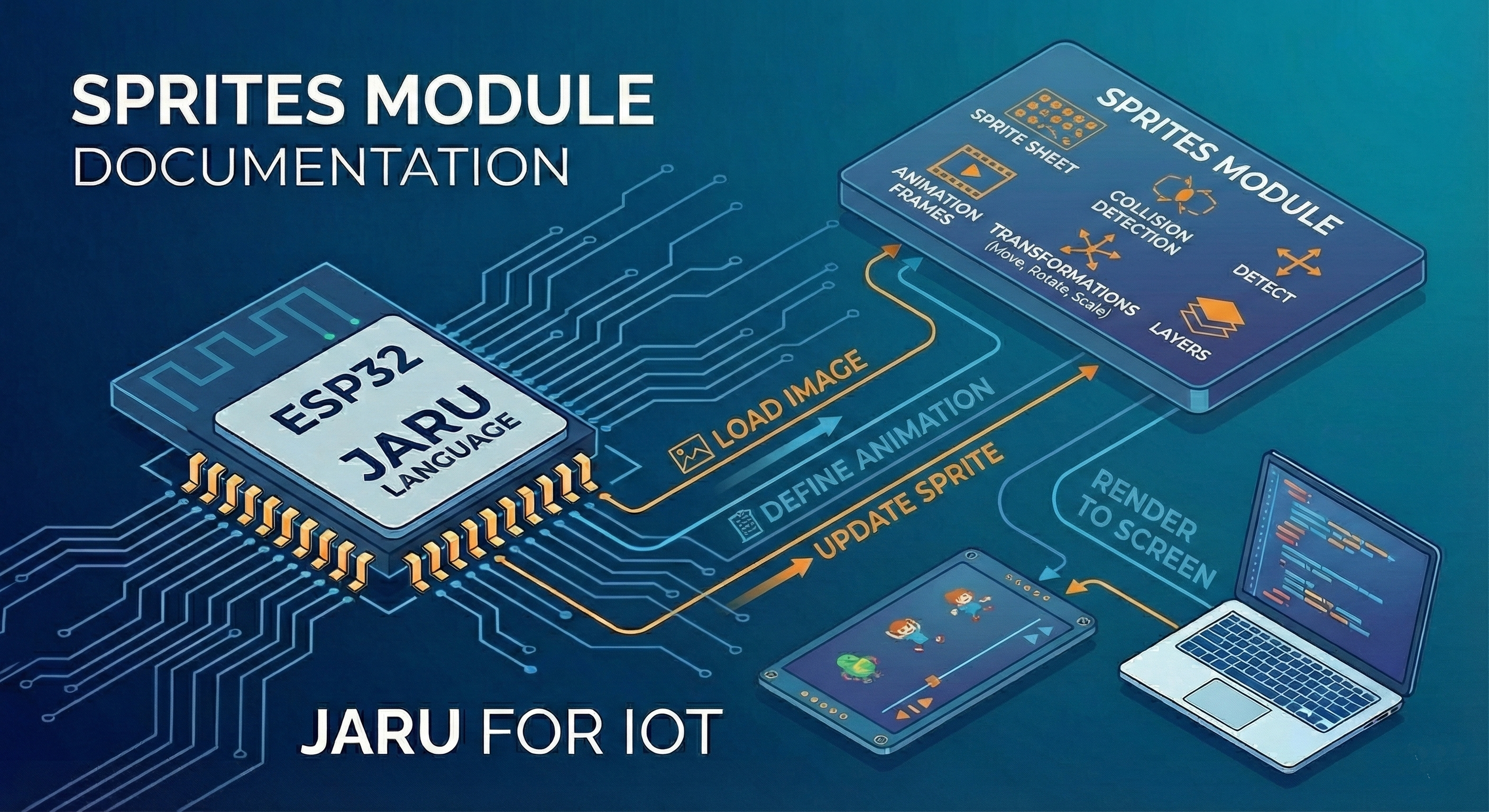
Sprites can contain multiple frames for animations, detect collisions with each other (including rotated sprites), and optionally participate in physics simulations with gravity, velocity, friction, and elasticity.
Usage
use Display
use Bitmap
use Sprite
Module Functions
load
The load(path) function loads a sprite from a JSON definition file along with its associated BMP images.
var player = Sprite.load("character.spr")
The JSON file must have the following structure:
{
    "frameWidth": 32,
    "frameHeight": 32,
    "totalFrames": 8,
    "fps": 12,
    "suffix": 2,
    "backgroundcolor": 0
}
| Field | Description |
|---|---|
frameWidth | Width of each frame in pixels |
frameHeight | Height of each frame in pixels |
totalFrames | Total number of frames |
fps | Frames per second of the animation |
suffix | Digits in the numeric suffix (e.g.: 2 = _00, _01...) |
backgroundcolor | Background color to treat as transparent (ARGB integer value, optional) |
Image files must be named following the pattern: basename_00.bmp, basename_01.bmp, etc.
new
The new() function creates a new sprite from a bitmap or by copying the frames from an existing sprite.
Create from bitmap
var image = Bitmap.load("ship.bmp")

// Create at position (0, 0)
var ship = Sprite.new(image)

// Create at a specific position
var ship2 = Sprite.new(100, 50, image)
Clone from another sprite
// Create original sprite
var enemy = Sprite.load("enemy.spr")

// Create a copy at (0, 0) that shares the same graphics
var enemy2 = Sprite.new(enemy)

// Create copies at specific positions
var enemy3 = Sprite.new(200, 100, enemy)
var enemy4 = Sprite.new(300, 100, enemy)
When you create a sprite from another sprite, the frames are shared in memory. This is very efficient for creating multiple instances of the same character or enemy.
Constants
Physics body types
| Constant | Value | Description |
|---|---|---|
Sprite.VISUAL | 0 | No physics, visual only |
Sprite.DYNAMIC | 1 | Affected by physics (gravity, collisions) |
Sprite.STATIC | 2 | Immovable, but collides with others |
Sprite.KINEMATIC | 3 | Moved by code, collides with dynamic bodies |
Collider types
| Constant | Value | Description |
|---|---|---|
Sprite.RECTANGLE | 0 | Rectangular collider |
Sprite.CIRCLE | 1 | Circular collider |
Instance Properties
Properties are accessed without parentheses to read and with = to assign:
// Read a property
var posX = sprite.x

// Assign a property
sprite.x = 100
Position and transformation
x
Gets or sets the X position of the sprite in pixels.
// Get X position
var posX = sprite.x

// Set X position
sprite.x = 100
y
Gets or sets the Y position of the sprite in pixels.
// Get Y position
var posY = sprite.y

// Set Y position
sprite.y = 200
pos
Sets the position of the sprite. Accepts two arguments or a list [x, y].
// Set position with two arguments
sprite.pos(100, 200)

// Or via list assignment
sprite.pos = [100, 200]
angle
Gets or sets the rotation angle in degrees.
// Get angle
var angle = sprite.angle

// Rotate 45 degrees
sprite.angle = 45

// Rotate continuously
sprite.angle = sprite.angle + 1
spin
Gets or sets the automatic rotation speed in degrees per second.
// Rotate automatically at 90 degrees per second
sprite.spin = 90

// Stop rotation
sprite.spin = 0

// Rotate in the opposite direction
sprite.spin = -45
spin is the sprite's manual rotation. On DYNAMIC bodies, collisions can additionally add physics rotation (see angularVel and rotates in the Physics section); both rotations are added together.
pivot
Gets or sets the pivot point (center of rotation) of the sprite.
// Get current pivot
var p = sprite.pivot
println("Pivot: ", p[0], ", ", p[1])

// Set pivot with two arguments
sprite.pivot(0, 0)

// Or via list assignment
sprite.pivot = [16, 16]
By default, the pivot is at the center of the sprite.
Dimensions
width
Gets the width of the sprite in pixels (read-only).
var w = sprite.width
height
Gets the height of the sprite in pixels (read-only).
var h = sprite.height
State
active
Gets or sets whether the sprite is active. Inactive sprites are not rendered or included in collision detection.
// Deactivate sprite
sprite.active = false

// Activate sprite
sprite.active = true

// Check if active
if (sprite.active) then
    println("The sprite is active")
end
Appearance
flipX
Gets or sets whether the sprite is flipped horizontally.
// Flip horizontally
sprite.flipX = true

// Restore orientation
sprite.flipX = false

// Check state
if (sprite.flipX) then
    println("Sprite flipped on X")
end
flipY
Gets or sets whether the sprite is flipped vertically.
// Flip vertically
sprite.flipY = true

// Restore orientation
sprite.flipY = false
Animation
frame
Gets or sets the current animation frame.
// Get current frame
var f = sprite.frame

// Go to frame 3
sprite.frame = 3
frames
Gets the total number of frames (read-only).
var total = sprite.frames
println("Total frames: ", total)
frameRate
Gets or sets the animation speed in milliseconds per frame.
// Get current speed
var speed = sprite.frameRate

// Set faster animation (50ms per frame = 20 fps)
sprite.frameRate = 50
loop
Gets or sets whether the animation repeats in a loop.
// Disable loop (animation stops at the last frame)
sprite.loop = false

// Enable loop
sprite.loop = true
yoyo
Gets or sets the ping-pong animation mode (back and forth).
// Enable ping-pong animation
sprite.yoyo = true

// Disable
sprite.yoyo = false
dir
Gets or sets the animation direction: 1 (forward) or -1 (backward).
// Play animation backward
sprite.dir = -1

// Play forward
sprite.dir = 1
Collisions
collider
Gets or sets the collider parameters.
// Get collider data
var data = sprite.collider
// For rectangle: [x, y, width, height]
// For circle: [x, y, radius]

// Set rectangular collider
sprite.collider = [0, 0, 32, 32]

// Set circular collider
sprite.collider = [16, 16, 16]  // center at (16,16), radius 16
colliderType
Gets the current collider type (read-only).
var type = sprite.colliderType
if (type == Sprite.RECTANGLE) then
    println("Rectangular collider")
elsif (type == Sprite.CIRCLE) then
    println("Circular collider")
end
Physics
DYNAMIC bodies do not just move: they also rotate on collision. A box falling on its edge tips over, a ball rolls down a ramp — including against a GridMap. Physics rotation is added on top of spin (the manual rotation) and can be disabled per sprite with rotates.
bodyType
Gets or sets the physics body type.
// Convert to dynamic body (affected by physics)
sprite.bodyType = Sprite.DYNAMIC

// Convert to static (immovable but collides)
sprite.bodyType = Sprite.STATIC

// Return to visual only (no physics)
sprite.bodyType = Sprite.VISUAL
velocity
Gets or sets the velocity as a list [vx, vy].
// Get current velocity
var vel = sprite.velocity
println("Velocity: ", vel[0], ", ", vel[1])

// Set velocity
sprite.velocity = [100, -50]  // 100 px/s right, 50 px/s up
Two sprites moving very fast can pass through each other without ever colliding, because between one frame and the next they jump from one side of the other body to the other.
This does not happen against the tile map: GridMap collision does take the sprite's full path into account.
force
Gets or sets the pending force as a list [fx, fy]. It is a single-step force: on the next scene.update() the engine integrates it (Δv = force / mass · dt) and resets it to zero. For sustained thrust (engine, wind, booster) reassign it every frame — or call applyForce() inside the loop, which is equivalent (assignment overwrites the frame's accumulated force; applyForce() adds onto it).
// Sustained thrust: reassign every frame, before scene.update()
while (true)
    rocket.force = [0, -300]   // upward thrust
    scene.update()
    Display.update()
end
acceleration aliassprite.acceleration is a historical alias of force, to be removed in version 1.0. The old name was misleading: the value is divided by the mass (with mass = 4, force = [200, 0] yields an effective acceleration of 50 px/s², not 200) and is consumed after each step — after a scene.update() the property reads back as [0, 0].
friction
Gets or sets the friction of the sprite.
// Get friction
var f = sprite.friction

// Set friction
sprite.friction = 0.5
Friction also governs collision-induced spin: it is what makes a ball roll instead of slide. A sprite with friction = 0 (the default) is a perfect bearing — nothing slows its rotation once it starts spinning.
mass
Gets or sets the mass of the sprite.
// Heavy sprite
sprite.mass = 10

// Light sprite
sprite.mass = 0.5
elasticity
Gets or sets the elasticity (bounce) of the sprite.
// Very elastic (bounces a lot)
sprite.elasticity = 0.9

// No bounce
sprite.elasticity = 0
rotates
Gets or sets whether collisions can spin the body (only affects DYNAMIC bodies). Enabled by default.
// Platformer character: always upright
player.rotates = false

// Box that tips over and rolls (default behavior)
box.rotates = true
With rotates = false the sprite keeps the classic behavior: physics moves the body but never changes its angle. This is the recommended setting for platformer heroes and, in general, for any sprite that must stay upright.
A collider only a few pixels across that can also spin is unstable when resting on other bodies. If you run into this, turn spinning off with rotates = false.
angularVel
Gets or sets the physics angular velocity in degrees per second: the spin that collisions impart to the body. It is independent from spin (both rotations are added together). There is a safety cap of 720 degrees per second.
// Read the current spin rate
var w = sprite.angularVel

// Launch the sprite spinning
sprite.angularVel = 180

// Stop the spin (for example, when recycling a body)
sprite.angularVel = 0
angularDamping
Gets or sets the angular damping of the body (0 by default, no damping). It gradually slows the spin down, even without contact with other surfaces.
The physical way to stop a spin is contact friction (friction), but once a body rolls without sliding, friction can no longer stop it: that is what angularDamping is for.
// Ball that gradually stops spinning
ball.angularDamping = 0.5

// Almost no spin loss
top.angularDamping = 0.05
bullet
Gets or sets continuous collision (CCD) for the body: off by default. With bullet = true the engine does not just check where the body ends up at the end of each step, it sweeps the whole path the body travelled during that step, so a fast projectile cannot pass through another body just because the impact fell between two steps.
// Shooter bullet: at 6000 px/s it covers 100 px per step, far more
// than the thickness of a wall
var shot = Sprite.new(0, 80, bulletTemplate)
shot.bodyType = Sprite.DYNAMIC
shot.bullet = true
shot.velocity = [6000, 0]
Without bullet, a body that moves further than its own size in a single step can show up on the far side of a thin obstacle without ever having touched it. That is the classic tunneling problem, and it only shows up with very fast bodies or very thin colliders: at normal speeds discrete detection is enough and cheaper.
Only enable it on the sprites that need it (bullets, pinball balls, bodies falling from very high). It is not a global quality switch: every marked body pays a sweep against the rest of the bodies on every step, so marking the whole scene is expensive and buys nothing.
It only takes effect on DYNAMIC bodies. On STATIC, KINEMATIC or VISUAL the value is stored and ignored, so you can set bullet before or after bodyType without worrying about the order.
// Both forms are equivalent
a.bodyType = Sprite.DYNAMIC
a.bullet = true

b.bullet = true
b.bodyType = Sprite.DYNAMIC
The scene auto-sleep (scene.sleeping) excludes bodies marked as bullets. Marking a permanent scenery sprite takes it out of the CPU saving for good. For short-lived projectiles this does not matter.
Collision against a GridMap already sweeps for every body, marked or not: bullet only affects body-versus-body collision.
The engine resolves at most two impacts per step per bullet. Past the second one the bullet stays at its last safe position and carries on in the following step: it never goes through anything, but it may look like it pauses for an instant in a very tight corner.
Instance Methods
Methods are always invoked with parentheses:
sprite.nextFrame()
var result = sprite.hits(other)
hits
Checks collisions of the sprite against another sprite, a list, or an array. Returns a list of colliding sprites, or nil if there is no collision.
// Against a single sprite
var result = player.hits(enemy)
if (result != nil) then
    println("Collision detected!")
end

// Against a list of sprites
var enemies = [enemy1, enemy2, enemy3]
var collisions = player.hits(enemies)
if (collisions != nil) then
    foreach (e in collisions)
        e.active = false
    end
end
The collision system uses a broadphase with bounding circles before precise narrowphase detection. Supports:
- Rectangle vs Rectangle (including rotation with SAT)
- Circle vs Circle
- Circle vs Rectangle
hitsGrid
Checks collisions of the sprite against a GridMap. Returns a list of results [tileX, tileY, tileValue, normalX, normalY] for each colliding tile, or nil if there is no collision.
Without second argument (solid tiles and platforms from the GridMap)
var collisions = player.hitsGrid(map)
if (collisions != nil) then
    foreach (info in collisions)
        println("Tile at (", info[0], ",", info[1], ") value=", info[2])
        println("Normal: ", info[3], ", ", info[4])
    end
end
With custom tiles
// Check against a specific tile (by value)
var collisions = player.hitsGrid(map, 5)

// Check against a list of tile values
var collisions = player.hitsGrid(map, [1, 2, 5])
When used without a second argument, hitsGrid automatically handles platforms defined in the GridMap as one-way platforms: it only registers a collision if the sprite was coming from above (its previous bottom edge was above the tile).
hitsGrid returns 8 tiles at most. That is plenty for normal-sized sprites, but a collider covering many cells at once will not get them all.
onGround
Returns true if the sprite is touching the ground (read-only). Requires the sprite to have physics enabled.
if (player.onGround()) then
    println("On the ground")
    // Allow jumping
    if (GPIO.read(15) == HIGH) then
        player.velocity = [player.velocity[0], -300]
    end
end
onCollision
Registers a callback that the physics engine executes automatically when the sprite starts touching another sprite. It's the reactive way to handle impacts: instead of polling hits() every frame, the engine notifies you with the strength of the hit.
sprite.onCollision(callback)
sprite.onCollision(callback, minImpulse)
sprite.onCollision(nil)          // disable
| Parameter | Type | Description |
|---|---|---|
callback | function/string | Direct reference (myFunction), an object method (object.method) or a name string. nil disables the callback |
minImpulse | integer/float | (Optional) Minimum contact impulse required to fire. Defaults to 0 (every new contact fires) |
The callback receives five parameters:
func onHit(me, other, impulse, nx, ny)
    // me:      the sprite that registered the callback
    // other:   the sprite it collided with
    // impulse: strength of the hit (accumulated normal impulse from the solver)
    // nx, ny:  contact normal, oriented from 'me' towards 'other'
end
Requires a physics scene (scene.physics = true) and both sprites participating in the simulation (DYNAMIC, STATIC or KINEMATIC). Events fire only when contact begins: a box resting on the ground generates no events while at rest, and if the bodies separate and collide again (a bounce) a new event is generated. If both sprites have callbacks, each one receives its own.
Example: projectile that destroys above a force threshold
use Sprite, Scene

class Pig
    def init(spr)
        this.spr = spr
        this.alive = true
        // Only strong hits deal damage
        spr.onCollision(this.takeHit, 300)
    end

    def takeHit(me, other, impulse, nx, ny)
        this.alive = false
        me.active = false
        println("Hit with force ", impulse, "!")
    end
end

var scene = Scene.new()
scene.physics = true
scene.gravity = 400

var rock = Sprite.new(20, 100, tpl)
rock.bodyType = Sprite.DYNAMIC
rock.mass = 4
scene.addSprite(rock)

var target = Sprite.new(200, 100, tpl)
target.bodyType = Sprite.DYNAMIC
scene.addSprite(target)

var pig = Pig(target)   // registers target.onCollision(pig.takeHit, 300)

rock.vx = 300           // launch!
With a method as callback (this.takeHit), the sprite keeps the instance alive while the callback is registered.
For simple reactions, an inline lambda avoids defining a separate function:
box.onCollision(fn(me, other, impulse, nx, ny):
    println("hit with force ", impulse, "!")
end, 100)
When settling after a fall, a body may generate several consecutive low-force contacts (solver micro-bounces). With a minImpulse suited to your game, only the hits that matter fire the callback.
The callback must accept exactly 5 parameters (me, other, impulse, nx, ny). If the signature doesn't match, the event is silently discarded. Collisions against GridMap tiles do not generate events (use hitsGrid for that); if the "ground" needs to notify, create it as a STATIC sprite.
applyForce
Pushes the body with a force that is consumed on the next physics step (Δv = F / mass · dt) and then discarded. It is equivalent to adding onto the force property. For sustained thrust, call it every frame inside the loop.
// Booster: continuous thrust while the button is held
while (true)
    if (Input.pressed(ACT_THRUST)) then
        ship.applyForce(0, -500)
    end
    scene.update()
    Display.update()
end
| Parameter | Type | Description |
|---|---|---|
fx | number | X component of the force |
fy | number | Y component of the force |
Requires the sprite to take part in physics (for example, bodyType = Sprite.DYNAMIC).
applyImpulse
Applies an instantaneous impulse: the velocity changes immediately (Δv = impulse / mass), without waiting for the physics step. It is the natural tool for jumps, shots and explosions.
// Jump: immediate velocity change, proportional to mass
player.applyImpulse(0, -300 * player.mass)

// Sideways kick from an explosion
box.applyImpulse(150, -80)
| Parameter | Type | Description |
|---|---|---|
ix | number | X component of the impulse |
iy | number | Y component of the impulse |
Requires the sprite to take part in physics (for example, bodyType = Sprite.DYNAMIC).
applyTorque
Applies a torque that spins the body against its inertia. Like applyForce, it is consumed on the next physics step and discarded: for sustained spinning, call it every frame. The resulting angular acceleration is t / inertia in degrees/s².
// Spinning top: accelerate the spin while the button is held
while (true)
    if (Input.pressed(ACT_SPIN)) then
        top.applyTorque(4000)
    end
    scene.update()
    Display.update()
end
| Parameter | Type | Description |
|---|---|---|
t | number | Applied torque. Positive = clockwise (with Y pointing down) |
The inertia depends on the collider's shape and mass: m·(width² + height²)/12 for rectangles and m·radius²/2 for circles. A body with rotates = false ignores torque, and the resulting spin respects the ±720 °/s safety cap and angularDamping.
applyForceAt
Applies a force at a specific world point: besides the linear push (identical to applyForce), it generates the torque r × F around the collider's center. This is the classic off-center hit: striking a box near a corner both shoves it and makes it spin.
// Off-center hit: pushes and flips the box
// (the point is 8px below the center of the 16x16 collider)
box.applyForceAt(300, 0, box.x + 8, box.y + 16)
| Parameter | Type | Description |
|---|---|---|
fx | number | X component of the force |
fy | number | Y component of the force |
px | number | X coordinate of the application point (world) |
py | number | Y coordinate of the application point (world) |
If the point coincides with the collider's center the result is a pure force (no spin), and the larger the lever arm, the more it spins. Like any force, it is consumed on the next step: for sustained pushing, call it every frame.
nextFrame
Manually advances to the next frame.
sprite.nextFrame()
addImage
Adds a bitmap as a new frame to the sprite.
var sprite = Sprite.new(Bitmap.load("frame0.bmp"))
sprite.addImage(Bitmap.load("frame1.bmp"))
sprite.addImage(Bitmap.load("frame2.bmp"))

println("Total frames: ", sprite.frames)  // 3
mem
Returns the memory usage in bytes of all sprite frames.
var memory = sprite.mem()
println("Memory used: ", memory, " bytes")
Example 1: Straight-line movement
The sprite moves to the right at constant speed. When it goes off-screen, it reappears from the left.
use Display, Bitmap, Sprite

var draw=Display.draw

// Open display in landscape mode
Display.open(320, 240)
Display.orientation(1)

// Load the image and create the sprite
var image = Bitmap.load("Images/ship.bmp")
var ship = Sprite.new(image)

// Initial position and speed
ship.x = 0
ship.y = 100
var speed = 4

// Main loop
while (true)
    // Update position
    ship.x = ship.x + speed

    // If it goes off the right edge, re-enter from the left
    if (ship.x > 320) then
        ship.x = 0 - ship.width
    end

    // Draw and update screen
    draw.sprite(ship)
    Display.update()
    pause(32)
end
Example 2: Bouncing off the edges
use Display, Bitmap, Sprite

var draw=Display.draw

// Screen dimensions
var SCREEN_W = 320
var SCREEN_H = 240

Display.open(SCREEN_W, SCREEN_H)
Display.orientation(1)

// Load image and create sprite
var image = Bitmap.load("Images/ship.bmp")
var ship = Sprite.new(image)

// Initial position (center of screen)
ship.x = 160
ship.y = 120

// Speed on each axis (pixels per frame)
var vx = 3
var vy = 2

// Main loop
while (true)
    // Move the sprite
    ship.x = ship.x + vx
    ship.y = ship.y + vy

    // Bounce off the right and left edges
    if (ship.x + ship.width >= SCREEN_W) then
        ship.x = SCREEN_W - ship.width
        vx = vx * -1
    end
    if (ship.x <= 0) then
        ship.x = 0
        vx = vx * -1
    end

    // Bounce off the bottom and top edges
    if (ship.y + ship.height >= SCREEN_H) then
        ship.y = SCREEN_H - ship.height
        vy = vy * -1
    end
    if (ship.y <= 0) then
        ship.y = 0
        vy = vy * -1
    end

    // Draw and update screen
    draw.sprite(ship)
    Display.update()
    pause(32)
end
Example 3: Rotate while moving
use Display, Bitmap, Sprite

var draw=Display.draw

// Screen dimensions
var SCREEN_W = 320
var SCREEN_H = 240

Display.open(SCREEN_W, SCREEN_H)
Display.orientation(1)

var image = Bitmap.load("Images/ship.bmp")
var ship = Sprite.new(image)

ship.x = 160
ship.y = 120
ship.spin = 10  // 120 degrees per second

var vx = 3
var vy = 2

while (true)
    ship.x = ship.x + vx
    ship.y = ship.y + vy

    if (ship.x + ship.width >= SCREEN_W) then
        ship.x = SCREEN_W - ship.width
        vx = vx * -1
    end
    if (ship.x <= 0) then
        ship.x = 0
        vx = vx * -1
    end
    if (ship.y + ship.height >= SCREEN_H) then
        ship.y = SCREEN_H - ship.height
        vy = vy * -1
    end
    if (ship.y <= 0) then
        ship.y = 0
        vy = vy * -1
    end

    draw.sprite(ship)
    Display.update()
    pause(32)
end
Performance Considerations
- Use
hits()with a list instead of multiple individual calls when checking against many sprites - Sprites with
bodyType = Sprite.VISUALdo not participate in physics calculations - Share graphics by creating sprites from other sprites instead of loading the same file multiple times
- The system uses broadphase detection (bounding circles) before precise detection to optimize performance
Supported Platforms
| Platform | Support | Notes |
|---|---|---|
| Windows | ✅ | Full support |
| ESP32 | ✅ | Full support with LittleFS/SD |
| Emscripten (Web) | ✅ | Full support |