Layers
A room is drawn in layers, one on top of another. There are three kinds:
- Tile layers: a tilemap of the project, made in the tilemap editor.
- Image layers: an image of the project, on its own or repeated. They are for backgrounds: the sky, far mountains.
- Object layers: what you place by hand, such as sprites, shapes or zones. Objects tells you about them.
The layers of the room are in the tree on the left, SCENE. What you can set for each one is in the LAYER section of the Object tab, on the right.
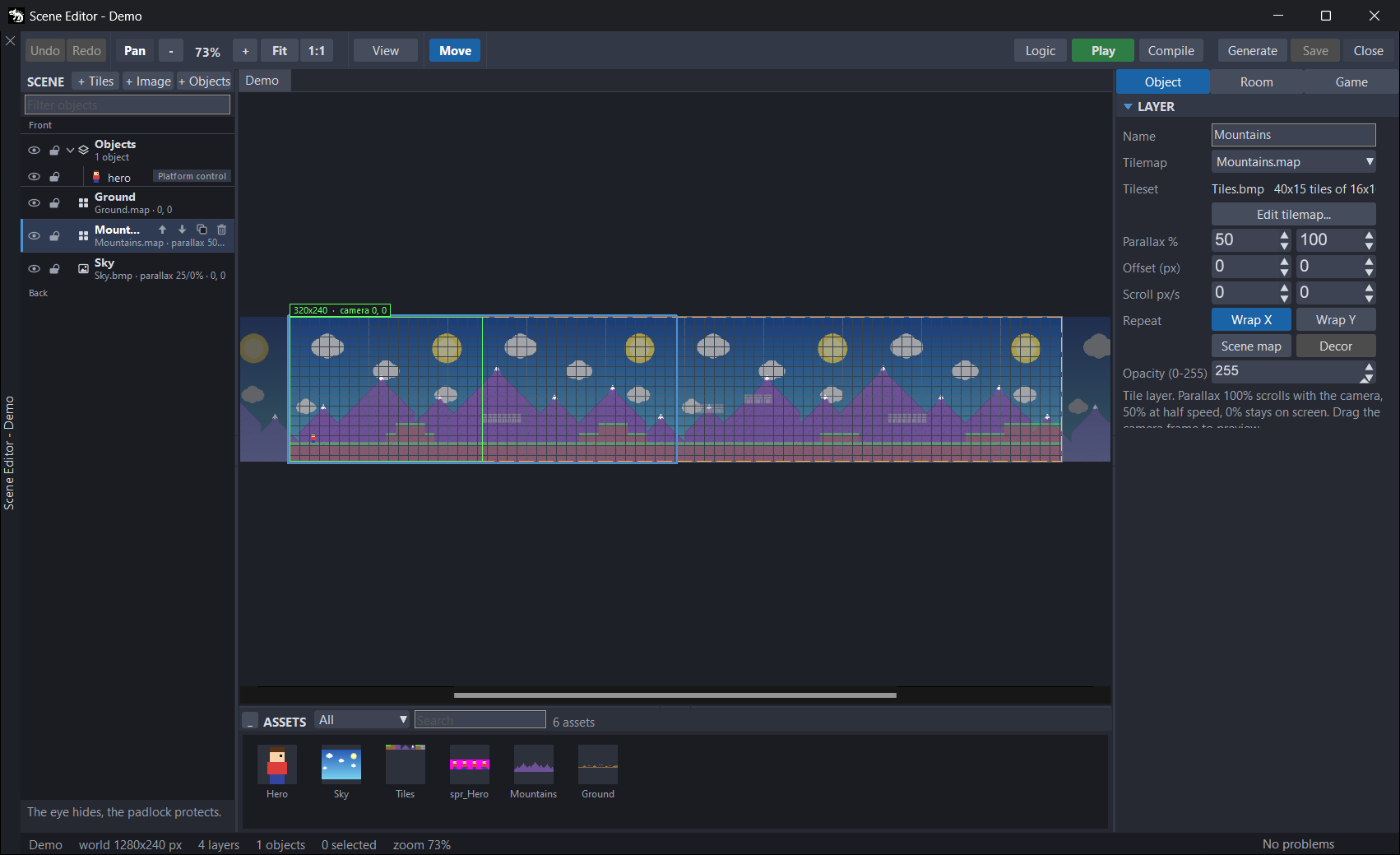
The layer tree
The top of the tree is what is drawn in front, and the bottom is the background: the Front and Back labels say so. Each layer has its objects below it. If the room has templates, the TEMPLATES group comes at the end (see Templates).
Click a layer to make it the active layer, the one you edit. The toolbar follows it:
- With an object layer, you get the object tools: Select, Place, Shape, Zone and Path.
- With a tile or image layer, you only get Move, which places it. Meanwhile, the other tile and image layers are shown at half opacity on the canvas, and objects cannot be chosen.
Pan is always there. Scene editor tells you about the tools.
The Filter objects box, above the tree, only shows the objects whose name or tag contains what you type.
Adding, ordering and deleting layers
- + Tiles, + Image and + Objects, at the top of the tree, add a layer of each kind. Tile and object layers go in front of all the others. An image layer goes right above the active layer: to add a background, make the backmost layer active first. If you have an image chosen in the ASSETS palette, the new image layer starts with it.
- The active layer, and the one under the mouse, show four buttons to the right of their name: move it up one place, move it down, duplicate it with everything in it, and delete it.
- To take a layer somewhere else in the stack, drag it by its name.
- To move objects to another object layer, drag them by their name onto it.
- Right-clicking a layer gives you Rename (
F2), Duplicate, Delete, Move the layer forward and Move the layer back. Rename takes you to the Name box of the LAYER section.
Deleting a layer asks first, and takes its objects with it. A room needs at least one layer: the last one cannot be deleted. When you duplicate Ground, the copy is called Ground copy and goes right above it; its objects get new names.
The eye and the padlock
Every layer and every object has an eye and a padlock at the start of its row. They do not do the same on a layer as on an object:
| On a layer | On an object | |
|---|---|---|
| Eye | Hides it on the canvas only: the game still draws it. | Takes it out of the game: a hidden object is not generated. |
| Padlock | A click on the canvas does not choose its objects. If it is a tile or image layer, neither Move nor the arrow keys move it. | It cannot be chosen on the canvas: not with a click, the marquee or Ctrl+A. |
Both are saved with the room, but neither goes into undo.
What each row says
Each layer shows its name and, below it, what tells it apart:
- Tile layer: its map, its parallax if it is not 100 %, and its position. For example,
Mountains.map · parallax 50% · 0, 0. With no map it saysno tilemap. The scene map does not show its parallax, because it does not use it. - Image layer: the same, with its image. With no image it says
no image. - Object layer: how many objects it has, such as
3 objects. A decor layer hasdecor ·in front, and its parallax after it if it is not 100 %.
Each object shows a thumbnail, its name ((unnamed) if it has none) and, on the right, its first behaviour, with +1, +2… if it has more. Inside each layer, the objects are in the order they are drawn: the top one is behind.
The LAYER section
With a layer active and no object chosen, the Object tab shows the LAYER section. If you choose an object, it folds to make room for INSTANCE: click its title to open it.
Each kind of layer has its own fields. The ones it does not use are greyed out:
| Field | Tile | Scene map | Image | Object | Decor |
|---|---|---|---|---|---|
| Name | yes | yes | yes | yes | yes |
| Tilemap / Image | Tilemap | Tilemap | Image | — | — |
| Parallax % | yes | — | yes | — | yes |
| Offset (px) | yes | yes | yes | — | yes |
| Scroll px/s | yes | — | yes | — | yes |
| Wrap X / Wrap Y | yes | yes | yes | — | — |
| Opacity (0-255) | yes | yes | yes | yes | yes |
- Name is only there to tell the layers apart: in the generated code it appears in a comment.
- Opacity (0-255) is only for the canvas: it lets you see through a layer while you work. The game does not use it.
- Below the fields, a text explains the layer. If the layer is going to leave gaps on the screen, it says so there, in amber (see "Parallax, Scroll and Wrap").
Tile layers
A tile layer draws a map (.map) of the project.
The map
- Tilemap is the map it draws. (no tilemap) leaves it empty.
- Below it, Tileset gives its tileset and its size:
Tiles.bmp 40x15 tiles of 16x16 px. - Edit tilemap... opens the map in the tilemap editor. When you save it there, the canvas updates by itself.
The first time you choose a map in Tilemap in a room that has none, the room takes the size of the map. If a layer's map disappears from the project, the layer is not generated, and the problems panel warns you. The same goes for the image of an image layer.
You can also put a map from the ASSETS palette:
- With a double-click, the map goes to the active tile layer, replacing the one it had, centred on what you are looking at. If the active layer is not a tile layer, a new one is made, with the name of the map.
- If you drag it onto the canvas, its top-left corner goes where you drop it.
Either way, the position snaps to the tiles of the map itself.
Offset and the Move tool
Offset (px) is where the layer starts, in pixels of the room: the top-left corner of the map. A layer can start outside the room.
With the layer active, the Move tool places it with the mouse:
- Drag the map across the canvas. The layer under the mouse moves, starting with the frontmost one, and becomes the active layer. Outside all of them, the active layer moves.
- With View › Snap to the grid on, it goes tile by tile of its own map: that way two maps one after the other fit with no gaps.
- The arrow keys move it the same way, one tile at a time, and one pixel with
Shift. - A locked layer does not move.
Parallax, Scroll and Wrap
- Parallax % is how much the layer moves with the camera, in X and in Y. At 100 it moves with the room; at 50 it moves at half speed and looks further away; at 0 it stays still on the screen. Above 100 it moves faster than the room, like something very close. It goes from 0 to 400.
- Scroll px/s moves it by itself, in pixels per second, even with the camera still: clouds, a starfield. The values go right and down.
- Wrap X and Wrap Y (the Repeat row) repeat the map endlessly, horizontally or vertically. On the canvas you see a dimmed copy on each side.
In the game, the layer appears on the screen at Offset - camera × parallax + seconds × Scroll. The parallax goes there as a fraction (50 % is 0.5), and the seconds count from when the room was loaded.
A layer with a parallax other than 100 %, or with Scroll, can fall short: as the camera moves on, a gap appears. The text of the section warns you with the numbers, and suggests turning Wrap on or making the map bigger. With Scroll and no Wrap, the layer ends up leaving the screen.
Drag the label of the screen frame, the one that says something like 320x240 · camera 0, 0 (the frame shows with View › Device screen). The frame acts as the camera, and the layers with parallax move on the canvas as they do in the game.
Scene map
Scene map marks the tile layer that is the scene map: the map that Draw.scene draws, right under the sprites. The layers above it cover the sprites; the ones below stay behind them. In the game, the room hands it to the scene with setGridMap (Scene module).
- Only one layer can be it. Marking another one unmarks the previous one.
- It cannot be unmarked. When the room opens, or when you put a map on a layer, if no tile layer is the scene map, the backmost one becomes it.
- If you delete the layer that is the scene map, the room is left without one until you open it again, and Generate and Play draw the sprites in front of every layer. Mark another tile layer with Scene map, or close the room and open it again.
Draw.scenedraws it stuck to the camera: Parallax % and Scroll px/s do not count and are greyed out. Offset and Wrap do count.- It gives no collision and no camera bounds. The collision comes from Room › Collision map, and the bounds from Room › CAMERA (see The room and the game).
- If its map is bigger than the room, the problems panel warns you that part of it is left outside.
If the collision map is the same .map that a layer draws, the collision moves with the Offset of that layer: the scene map's, or else the first layer that draws it. It does not follow the parallax, Scroll or Wrap: if that layer has any of them, the problems panel warns you.
Image layers
An image layer draws an image of the project. It is for backgrounds that are not made of tiles: a sky, some mountains.
- Image is the image. (no image) leaves it empty. Below it, Size gives its size.
- From the ASSETS palette, with an image layer active, double-clicking an image, or dragging it onto the canvas, changes the layer's image.
- Black is transparent, as in the game.
- Parallax %, Offset (px), Scroll px/s, Wrap X / Wrap Y and Opacity (0-255) work as on tile layers. Move places it the same way, but snapped to the room grid (Room › Snap (px)).
In the game it is drawn with Draw.bitmap. With Wrap, the image repeats until it fills the screen. Each different image is loaded only once, even if several layers use it.
Object layers
An object layer holds what you place by hand: sprites, images, shapes, zones and routes. Objects tells you how to place them and what each field is.
The objects move with the camera as they are: an object layer has no parallax, position or repeat. Its sprites are drawn with the scene map (see "Drawing order").
Decor layers
Decor turns an object layer into a decor layer: sprites that decorate, but are not part of the game.
- Their sprites are not in the scene: they have no body, collider, tag, behaviours, states or code.
<Room>Drawdraws them in the place of their layer in the stack, with Parallax %, Offset (px) and Scroll px/s, like an image layer. They do not repeat.- The named ones are in
room.named, so the game can hide them or change their frame. Their position comes from a table every frame: moving them from the game does nothing. - What you place on a decor layer does not inherit anything from the last object of the same resource.
Drawing order
In the game, the room is drawn with <Room>Draw(room), the function the IDE generates for each room (The code it generates). It walks the stack from back to front, in the order of the tree, and draws each layer like this:
| Layer | How it is drawn |
|---|---|
| Image | With Draw.bitmap, with its parallax, its Offset and its Scroll. With Wrap, it repeats it until the screen is full. |
| Tile | With Draw.tilemap, with its parallax, its Offset and its Scroll. |
| Scene map | With Draw.scene: the map and, right on top of it, all the sprites of the room. |
| Object | Only its shapes and its zones with Show in game. Its sprites go with the scene map. |
| Decor | Its sprites and its shapes, with the parallax of the layer. |
The Show a variable texts go on top of everything (Behaviours). If the room has no scene map, the sprites are drawn last, in front of every layer.
The sprites come out in the order of the room: from the backmost object layer to the frontmost one and, inside each layer, from top to bottom in the tree. To change the place of an object inside its layer, use the right-click menu on the canvas: Bring forward (PgUp) and Send backward (PgDn) move it one place; Bring to front (Home) and Send to back (End), all the way. The sprites the game creates later, with a spawner or with the Create from a template action, come out in front of the ones already there.
So there are things you cannot do:
- Put sprites behind the scene map.
- Put a tile or image layer between some sprites and others: they all go together, on top of the scene map.
- Give each object layer its own height in the stack: only its shapes and its zones stay in their place.
The canvas draws each object layer in its place in the stack, and the game draws all the sprites together with the scene map. If an object layer is below the scene map, on the canvas its sprites are behind the map, and in the game, in front. If it is above a tile or image layer that is itself above the scene map, on the canvas its sprites cover that layer, and in the game they are behind it. For the canvas to show what you will see, put the object layers right above the scene map.
When the game destroys a sprite, the VM takes it out of the scene and puts the last sprite of the list in its slot. From then on, that sprite is drawn before others it used to cover. Whatever must always be in front of the sprites, put it on a tile or decor layer above the scene map.
If you want sprites behind the map, such as some trees in the background, put them on a decor layer below it. Those sprites do not collide and have no behaviours.
Known issues
- The padlock and the eye do not fully protect. With an object layer locked or hidden, the marquee,
Ctrl+Aand the tree choose its objects, and then they can be moved or deleted. And Place, Shape, Zone, Path and Paste add objects to the active layer even if it is locked or hidden. Before placing anything, check which layer is active. - The eye of an object cannot be undone. Hiding an object leaves it out of the game, and
Ctrl+Zdoes not bring it back. Click the eye again. - The LAYER section keeps the previous layer. If you choose an object of another layer in the tree, or double-click a problem of an object, the active layer changes, but LAYER still shows the previous one. Touching a field then, even just going in and out of Name, writes the old layer's values into the new one. Before touching LAYER, click the layer's name in the tree. If it has happened,
Ctrl+Zundoes it. Something similar happens when you choose a map in Tilemap: the section keeps showing what it had (on a new layer, Edit tilemap... stays greyed out) until you choose another layer and come back to this one. - Offset and Scroll take no negative values. A layer moved to the left of or above the room with Move or the arrow keys shows 0 in Offset, and if you change the other axis in its box, the layer jumps to 0. Move those layers with Move or the arrow keys. Scroll px/s cannot take a negative value: the layer can only move by itself to the right or down.
- Move can grab another layer in the margin. With Move, a click outside the room, where nothing is drawn any more, can activate and drag a layer with Wrap instead of the active one. If the wrong one moves,
Ctrl+Z.
All the known issues of JARU, together, are in Known issues.