Behaviours
A behaviour is a ready-made piece of gameplay that you give to an object: going back and forth, chasing another object, walking and jumping with the controls, having health, creating enemies… You write no code: when you compile, the editor turns it into JARU code for the room.
There are twelve, in three groups: seven for movement, four for gameplay, and the spawner. An object can carry several, but only one of each.
If you make a template out of an object, the template takes its behaviours as they are at that moment. Every copy that a Spawner or a rule creates comes with them.
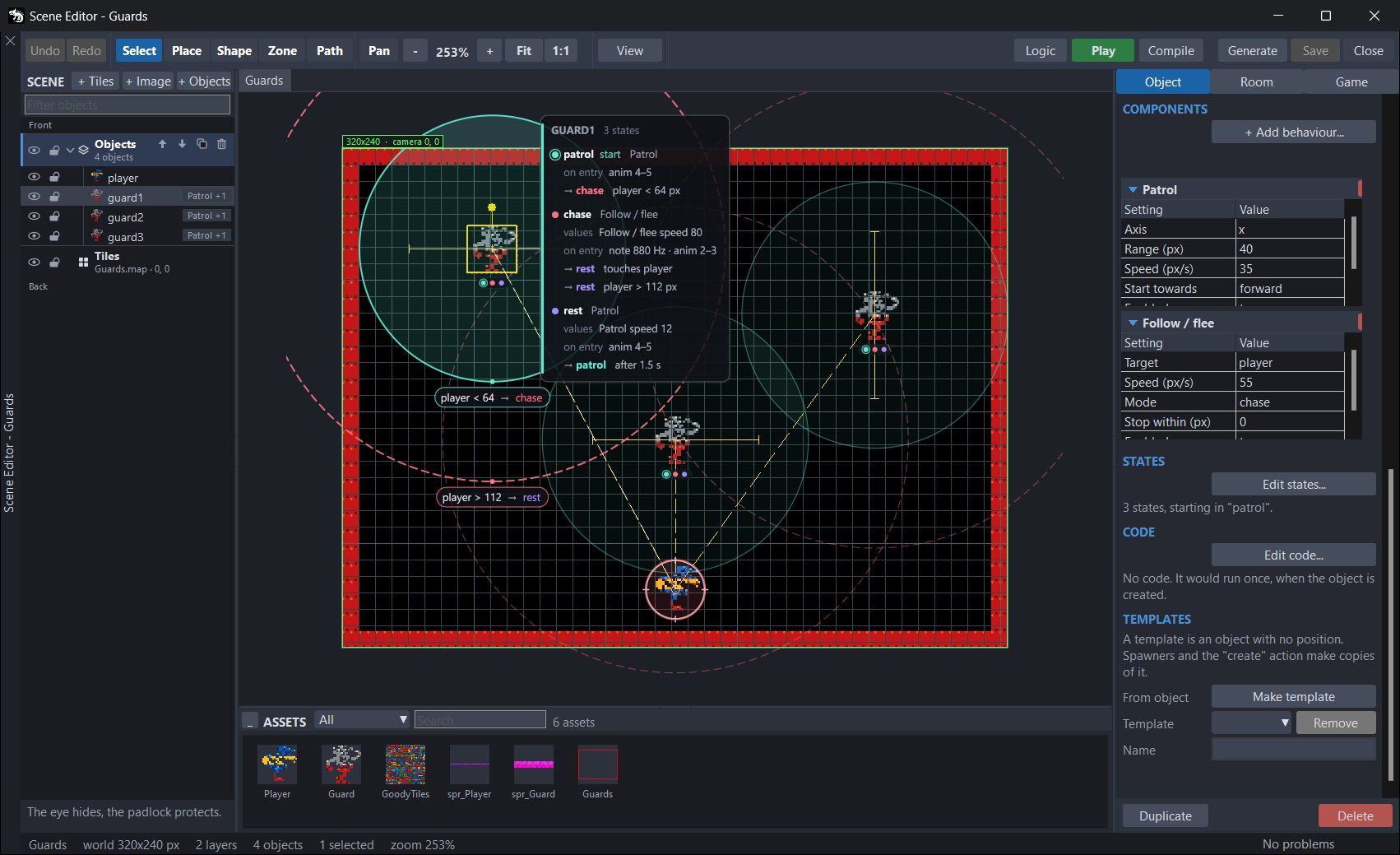
Adding, removing and turning off
Select a single object, on the canvas or in the room tree. In the inspector, Object tab, the INSTANCE section has the COMPONENTS block with the + Add behaviour... button.
- Click + Add behaviour.... The list of behaviours opens.
- Pick one. Each row shows its group on the right: MOVEMENT, GAMEPLAY or SPAWN. Next to the list you see what it does and its settings with their default values (SETTINGS). If it is not going to work on that object, it warns you right there.
- Click Add, double-click it or press
Enter.
In the Search box you can type part of the name or of the group. Esc closes the list without adding anything.
The list only offers what the object can carry:
- What it already carries does not show up again.
- On an image, a shape or a zone, only Show a variable and Spawner show up: the others need a sprite.
- You cannot add anything to a route (give Follow route to the object that walks it), to a decor object, or with several objects selected.
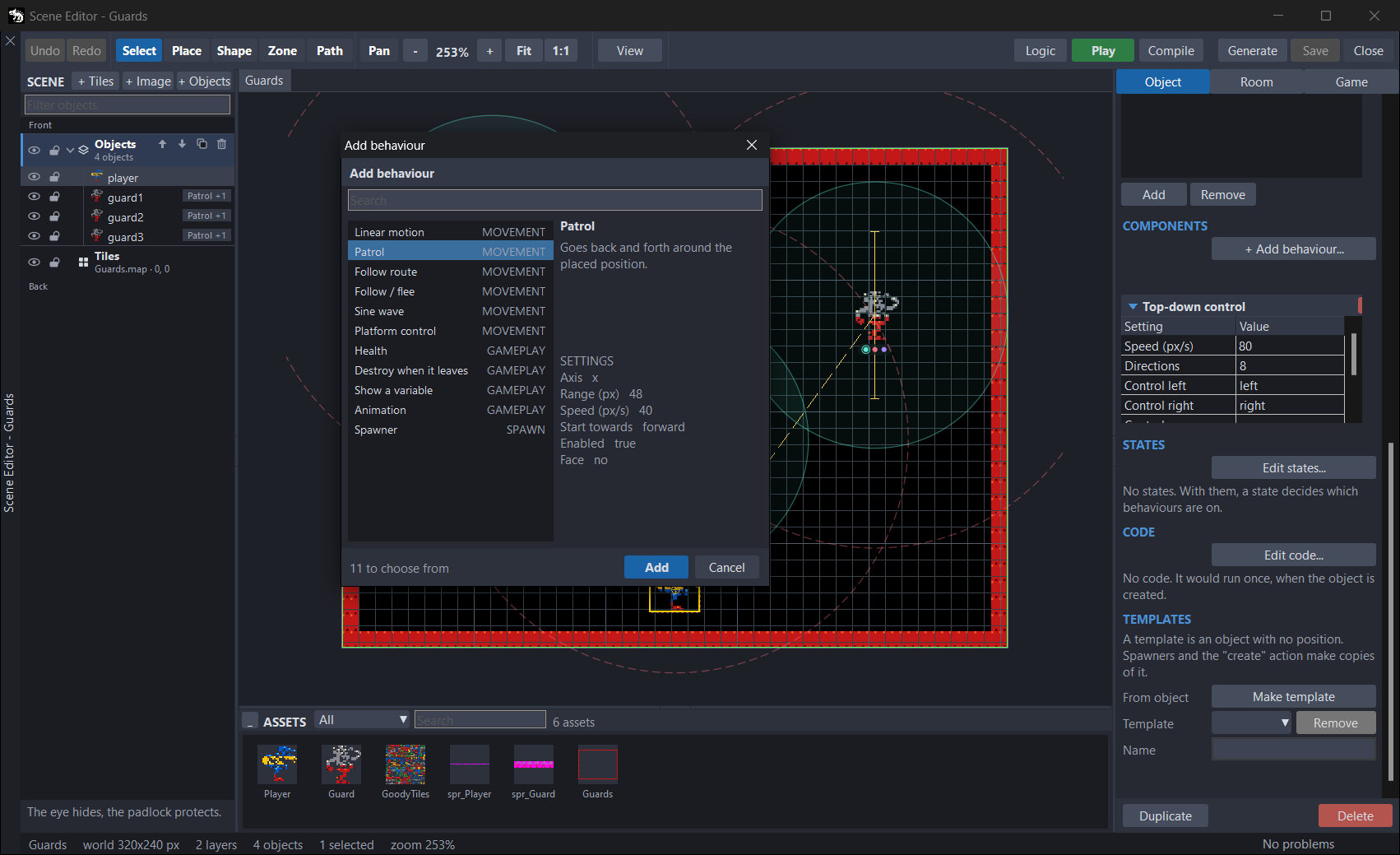
The cards
Each behaviour of the object is a card, below the button:
- The header shows its name. Click it to fold or unfold the card.
- Below it are its settings, in two columns: Setting and Value. Type the value or pick it from the list.
- In the settings that only have a few fixed options, such as Axis or Enabled, always pick from the list: they also take whatever you type, and a value that is not in the list gives no error. The game then uses the default, and in the
trueorfalseones,false. - Numbers take a decimal point or a decimal comma. If you type something that is not a number, the default value is used and the problems panel warns you.
- The x on the header removes the behaviour. Undo (
Ctrl+Z) brings it back.
Four cards fit. With five behaviours or more, the fifth one is not shown: see Known issues.
If Platform control is not going to work, the header says so after the name: (physics off) if the room has no physics, or (needs Dynamic body) if the body of the object is not Dynamic.
On or off
Almost all of them have the Enabled setting:
true(the default): it starts on.false: it starts off. It keeps its settings, and a rule or a state can turn it on during the game.
When off, a behaviour does nothing, but it is still in the game code. To get rid of it, remove it with the x.
Show a variable and Animation have no Enabled: they are always on.
What they draw on the canvas
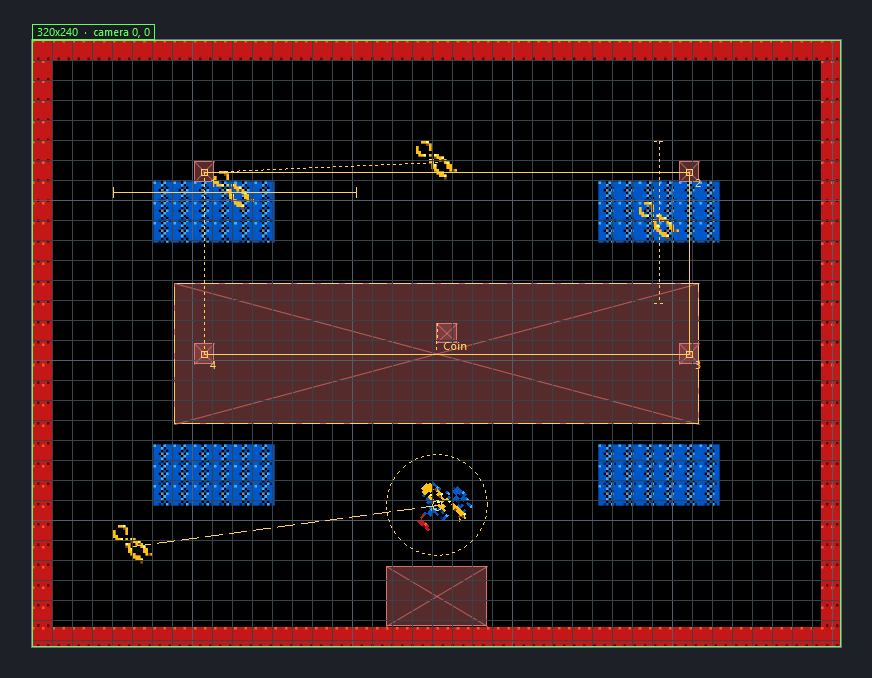
With View › What the behaviours do on (it is by default), the canvas draws what each one will do:
- Patrol and Sine wave: the stretch they cover, with a mark at each end.
- Follow route: the route, with its points numbered.
- Follow / flee: a line to the target and, if it has Stop within (px), its circle.
- Spawner: its zone and the name of the template.
- Destroy when it leaves: the edge of the room plus the margin.
- Linear motion: how far it goes in one second.
If something is missing, it shows up in red next to the object: route?, target?, zone? or template?.
Movement behaviours
All seven move the object, and all of them need an object with a sprite.
With and without physics
How they move the object depends on whether the room has physics (Room tab, PHYSICS, Enabled):
- Without physics, they change its position every frame. Patrol, Follow / flee and Top-down control stop at the solid cells of the collision map; Linear motion, Follow route and Sine wave go through it.
- With physics, Linear motion, Patrol, Follow route, Follow / flee and Top-down control set its velocity, and the physics engine moves it. Then the body of the object (Body) matters:
| Body | What happens |
|---|---|
| Visual or Static | It does not move. The problems panel warns you. |
| Kinematic | It moves and does not fall. The collision map does not stop it: it only stops Dynamic bodies. |
| Dynamic | It moves and the map stops it. But the behaviour also sets its vertical velocity every frame: with gravity, it floats down, very slowly. Set its Gravity scale to 0. |
Sine wave and Platform control are different: each one tells you.
Face. Patrol, Platform control and Top-down control have the Face setting, which flips the sprite towards where it goes:
no(the default): it leaves it alone.the way it moves: for art that faces right.the way it moves, drawn facing left: for art that faces left.
Only horizontal movement counts. When it stops, it keeps facing the way it was going.
Linear motion
Moves it in a straight line, always at the same speed: bullets, clouds, a platform that crosses the screen.
| Setting | What it is | Units | Default |
|---|---|---|---|
| Speed X | Horizontal speed. Negative, to the left. | px/s | 0 |
| Speed Y | Vertical speed. Negative, upwards. | px/s | 0 |
| Enabled | Whether it starts on. | — | true |
- It never stops. If it has to go away when it leaves the room, give it Destroy when it leaves as well.
- With the Create from a template action and Face like it, if the shooter faces left, the copy is born flipped and with its Speed X sign changed: the same bullet template shoots both ways.
- Body: without physics, any. With physics, Kinematic.
Patrol
Goes back and forth in a straight line around where it is: the enemy that walks up and down a platform.
| Setting | What it is | Units | Default |
|---|---|---|---|
| Axis | Where it goes back and forth: x (horizontally) or y (vertically). | — | x |
| Range (px) | How far it goes to each side of the starting point. | px | 48 |
| Speed (px/s) | Speed. | px/s | 40 |
| Start towards | Which way it starts: forward (right or down) or backward (left or up). | — | forward |
| Enabled | Whether it starts on. | — | true |
| Face | Whether it flips the sprite towards where it goes. Only on the x axis. | — | no |
- The starting point is where it is when the room loads; in a template copy, where it is born.
- It turns round at each end. It looks at where it really is: if something pushes it, it does not lose its stretch.
- Without physics, a solid cell of the collision map turns it round as well.
- With physics, only the ends do: if a wall stops it before, it stays there pushing. Pick a Range (px) that does not reach any wall.
- Body: without physics, Visual. With physics, Kinematic.
Follow route
Walks a route point by point, at a constant speed: a platform that goes up and down, a guard on his rounds.
| Setting | What it is | Units | Default |
|---|---|---|---|
| Route tag | The tag of the route it follows. | — | (empty) |
| Speed (px/s) | Speed. | px/s | 50 |
| At the end | What it does at the last point: loop (back to the first one), pingpong (walks it backwards) or stop (stays there). | — | loop |
| Enabled | Whether it starts on. | — | true |
- You draw the route with the Path tool (
6) and give it a tag in Tag. - If no route has that tag, the zones that carry it will do: it walks through their centres, in the order of their names (
zone2beforezone10). - It starts from where the object is towards the first point.
- With fewer than two points it does not move. The problems panel warns you.
- Body: without physics, any, but it goes through the collision map (the problems panel warns you). With physics, Kinematic.
Follow / flee
Chases another object of the room, or runs away from it, in a straight line.
| Setting | What it is | Units | Default |
|---|---|---|---|
| Target | The name of the object it chases or runs away from. | — | (empty) |
| Speed (px/s) | Speed. | px/s | 40 |
| Mode | chase or flee. | — | chase |
| Stop within (px) | When chasing, how close it gets before it stops. With 0, it never stops. | px | 0 |
| Enabled | Whether it starts on. | — | true |
- The target is a sprite or an image of the room with a name (Name). A template copy has no name: it cannot be the target.
- It looks for the target when the room loads. If it is not there, it does nothing. If the target is destroyed, it stops following it.
- It goes in a straight line and does not go round obstacles. Without physics, it stops at the solid cells of the collision map and slides along the wall.
- Body: without physics, Visual. With physics, Kinematic.
Sine wave
Oscillates around where it is, with a smooth sway: a floating coin, a fish that goes up and down.
| Setting | What it is | Units | Default |
|---|---|---|---|
| Axis | Axis of the sway: x or y. | — | y |
| Amplitude (px) | How far it goes to each side of its place. | px | 24 |
| Period (s) | How long a whole oscillation takes. | s | 2 |
| Phase (0..1) | At which point of the oscillation it starts, from 0 to 1. Use it so that several identical objects do not move in step. | — | 0 |
| Enabled | Whether it starts on. | — | true |
- It is the only one that writes the position directly, without going through the velocity.
- When off, it stays still wherever it is; when it comes back, it picks up the wave where it left it.
- Body: without physics, any, and it goes through the collision map. With physics, Visual or Kinematic; not Dynamic, because the physics would move it at the same time.
Platform control
The player of a platform game: walks left and right and jumps with the controls of the game.
| Setting | What it is | Units | Default |
|---|---|---|---|
| Speed (px/s) | Walking speed. | px/s | 90 |
| Jump (px/s) | Upward speed when it jumps. The more, the higher it jumps. | px/s | 260 |
| Control left | The game control that moves it left. | — | left |
| Control right | The control that moves it right. | — | right |
| Control jump | The jump control. | — | jump |
| Enabled | Whether it starts on. | — | true |
| Face | Whether it flips the sprite towards where it goes. | — | no |
- The controls are those of the Game tab, CONTROLS block. By default,
leftandrightare the arrow keys, andjumpis the space bar. - It only jumps when it stands on the ground, when you press: holding the control does not jump again. The height depends on Jump and on the gravity of the room.
- In the air it also moves left and right.
- When you add it, if the bounce of the object (Bounce, in Fric. / Bounce) has its default value, 0.5, it sets it to 0: that way it does not bounce when it lands.
- In the game the object never rotates, as with Fixed rotation.
- Body: only with physics and Body = Dynamic. It is the only one that leaves falling to gravity. In a room without physics it is not generated, and with another body it does not move: the header of the card and the problems panel warn you.
Top-down control
The player seen from above: moves in four or eight directions with the controls of the game.
| Setting | What it is | Units | Default |
|---|---|---|---|
| Speed (px/s) | Speed. | px/s | 80 |
| Directions | 4: only horizontally or vertically. 8: diagonally as well. | — | 4 |
| Control left | The game control that moves it left. | — | left |
| Control right | The control that moves it right. | — | right |
| Control up | The control that moves it up. | — | up |
| Control down | The control that moves it down. | — | down |
| Enabled | Whether it starts on. | — | true |
| Face | Whether it flips the sprite towards where it goes. | — | no |
- The controls are those of the Game tab, CONTROLS block. By default they are the arrow keys.
- With
4, if you press a horizontal and a vertical direction at the same time, the horizontal one wins. - With
8, it goes as fast diagonally as straight. - Without physics, it stops at the solid cells of the collision map and slides along the wall.
- Body: without physics, Visual. With physics, Dynamic with Gravity scale at 0, so that the map stops it and it does not fall. If you forget, the problems panel warns you.
Gameplay behaviours
Health
Hit points. The Take health away action of a rule takes them away, and when they run out, the object is destroyed.
| Setting | What it is | Units | Default |
|---|---|---|---|
| Hit points | The points it starts with. | points | 3 |
| When it runs out | What happens at 0: destroy (it is destroyed) or nothing. | — | destroy |
| Enabled | Whether it starts on. When off, it loses no health. | — | true |
| Hit points from | Where the points come from: this object (its own) or the game health (the game variable health). | — | this object |
- With
this object, each object has its own, and in every room it starts with Hit points. - With
the game health, the points are thehealthvariable of the Game tab, which goes from room to room and stays between 0 andmaxHealth. Hit points does not count. It is meant for the player: if several objects use it, they share the same health, and the problems panel warns you. - Turning it off for a while is the invulnerability after a hit.
- It acts every frame before the rules. If a rule takes a life when it runs out (Lose a life), set When it runs out to
nothing: withdestroy, the object is gone before the rule gives the health back. The problems panel warns you too. - Body: any, with or without physics.
Destroy when it leaves
Destroys the object when it leaves the room: bullets, enemies that cross the screen, whatever falls down a hole.
| Setting | What it is | Units | Default |
|---|---|---|---|
| Margin (px) | How far it can get past the edge before it is destroyed. | px | 32 |
| Enabled | Whether it starts on. | — | true |
- It looks at the position of the object: it destroys it when it gets further than Margin (px) past the edge of the room, on any side. The size of the room is Room (px), in the Room tab.
- If something else has to happen when it leaves, such as losing a life, use the When it leaves the room rule (Rules and states).
- Body: any, with or without physics.
Show a variable
Writes the value of a variable on screen, with some text before it: the lives, the score…
| Setting | What it is | Units | Default |
|---|---|---|---|
| Variable | The variable: one of the game (game.lives, game.score…) or one of the room. | — | game.lives |
| Label | The text that goes before it. There is a space between the two. | — | Lives: |
| Color | white, yellow, red, green, cyan or black. | — | white |
| Fixed on screen | true: fixed on the screen, it does not move with the camera. false: it stays at its place in the room. | — | true |
- It shows up where the object is in the editor. The handiest is to put it on a small zone (Zone tool), which the game does not draw.
- With Fixed on screen, its place in the room, as seen with the camera at 0, 0, is its place on the screen.
- It is written on top of everything, after the layers.
- A yes/no variable shows up as
trueorfalse. - It only counts on the objects placed in the room: on a template it does nothing, and the problems panel does not warn about it.
- Use it to see what the Change a variable and Lose a life actions change.
- Body: it needs no sprite. It goes on any object.
Animation
How the frames of this object's sprite play: at what speed, looping, there and back, or backwards.
| Setting | What it is | Units | Default |
|---|---|---|---|
| Frames per second | Speed. With 0, it stays on its frame. | fps | 8 |
| Loop | Starts again when it ends. | — | true |
| Ping-pong | Goes to the last frame and back, over and over. With it, Loop does not count. | — | false |
| Backwards | Backwards: from the frame of the object (Angle / Frame) down to 0. | — | false |
- Without Animation, an object that starts on frame 0 plays as its sprite says in the sprite editor, and one that starts on another frame stays on it. With Animation, these four settings rule, only for this object.
- Without Loop, when the animation ends the sprite turns off and the object is gone from the game: good for an explosion.
- Backwards and without Loop, it ends on frame 0. If the object starts on 0, it is gone at once; the problems panel warns you.
- It is applied on load: it cannot be turned off or changed in a state. To play a stretch of the sprite sheet, use the Play an animation action.
- Body: any.
Spawner
Creates copies of a template every so often: enemies that keep coming, drops, meteors.
| Setting | What it is | Units | Default |
|---|---|---|---|
| Template | The template it makes copies of. | — | (empty) |
| Every (s) | How often it creates copies. | s | 2 |
| How many each time | How many copies it creates each time. | copies | 1 |
| Max at once | How many of its copies can be alive at the same time. | copies | 8 |
| Inside zone | A zone of the room: each copy appears at a random point inside it. Empty: at the place of the spawner. | — | (empty) |
| Enabled | Whether it starts on. | — | true |
- The template comes from an object of the room (Objects). Each copy is born with its behaviours, its tag, its code and its states.
- The first batch comes when Every (s) seconds have passed, not when the room loads.
- Every (s) has to be greater than 0. The card does not check it: with 0, it creates copies on every frame, up to Max at once.
- Max at once only counts its live copies: when one is destroyed, it makes room for another. It is the cap that keeps a board from running out of memory.
- It can go on an object without a sprite, such as a zone.
- When off, it creates no copies.
- From your code,
SceneSpawners(room, false)turns off every spawner of the room, andSceneSpawners(room, true)turns them on. - Body: any. The copies carry the one of the template.
With rules and states
A rule can take health from an object with Health (Take health away action) and turn on or off any of the ten behaviours that have Enabled (Turn a behaviour on or off action). The states of an object (Edit states... button of the STATES block) say which behaviours are on in each state and can change some of their settings. All of that is covered in Rules and states.
The code they generate
When you compile, each behaviour becomes JARU code. The files and how to use them are in The code it generates.
- The ten that have Enabled are a
structwith its step function, inCode/SceneRuntime.gen.aru. That file only carries the ones the project uses. - The room creates one per object when it loads. Every frame,
<Room>Update(room)makes them all take their step, before the rules. - Animation has no step: on load, it sets
frameRate,loop,yoyoanddiron the sprite (Sprite). - Neither does Show a variable:
<Room>Draw(room)writes it withDraw.text. - What cannot be generated (a behaviour that needs a sprite on an object without one, or Platform control in a room without physics) stays in the
.gen.aruas a comment that explains it. - With rooms as data, behaviours only work from the
.gen.aruof their room. The Build warns you.
| Behaviour | struct | Room list |
|---|---|---|
| Linear motion | SceneBehLinear | room.behLinear |
| Patrol | SceneBehPatrol | room.behPatrol |
| Follow route | SceneBehPath | room.behPath |
| Follow / flee | SceneBehFollow | room.behFollow |
| Sine wave | SceneBehSine | room.behSine |
| Platform control | SceneBehPlatformer | room.behPlatformer |
| Top-down control | SceneBehTopdown | room.behTopdown |
| Health | SceneBehHealth | room.behHealth |
| Destroy when it leaves | SceneBehOffscreen | room.behOffscreen |
| Spawner | SceneBehSpawner | room.behSpawner |
Known issues
- From the fifth behaviour on, they are not shown. Four cards fit: with five, the inspector says "Showing the first 4 behaviours of 5". The fifth one works in the game, but you cannot edit it or remove it. Give an object four at most. If it already has five, use Undo or remove one of the first four: the fifth moves into its card.
- A Spawner without a zone drops its copies where it was when the room loaded, even if it has moved. Placed on a zone, they appear at its top left corner, not in its centre; on a template, at the corner of the room (0, 0). Give it a zone in Inside zone: a spawner placed on a named zone can use that zone itself. To create copies where a moving object is, use the Create from a template action with at the subject.
- With physics, Follow / flee does not stop the object when its target disappears: it keeps sliding in the last direction. If the target can disappear, turn Follow / flee off when it does, with the Turn a behaviour on or off action (for instance, in the rule that destroys it): when it is turned off, the object stops.
- The problems panel suggests Dynamic "to also fall", and it does not fall. With physics, for Linear motion, Patrol, Follow route, Follow / flee and Top-down control on a Visual or Static object, the warning suggests "Kinematic (or Dynamic, to also fall)". With Dynamic it floats down, very slowly, because the behaviour sets its vertical velocity every frame. Use Kinematic, or Dynamic with Gravity scale at 0.
- Show a variable and Spawner keep working when you hide their object with the eye in the room tree: the text is still written and the spawner keeps creating copies. To take them out of the game, remove the behaviour.
- The description of Health talks about the "damage" action. In the list of actions it is called Take health away.