Rules and states
Rules bring a room to life without writing code: "when the player touches a coin, add a point, play a note and remove the coin". Each rule is an event, what has to happen, and a list of actions, what is done then.
State machines belong to an object. Each state says which of the object's behaviours are on and what makes it change state: a guard patrols, chases the player when they get close and rests when it loses them.
Rules are edited in the Room logic window, and machines in States. They are separate windows that stay open while you work on the canvas. If this is your first game with rooms, start with Your first game with rooms.
Rules
Press Logic on the scene editor bar, or Room logic... in the Room tab (MORE section). Room logic opens with the rules of the active room. If you switch rooms, the window follows the new one.
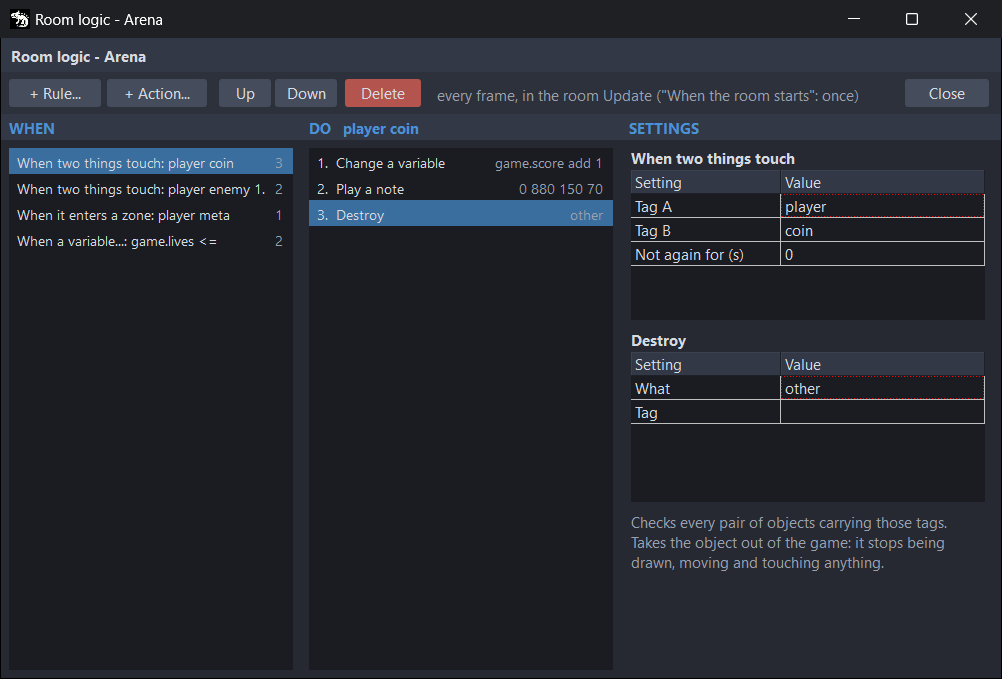
It has three columns:
- WHEN: the rules of the room. Each row shows the event and the settings you have changed, such as the two tags of "When two things touch: player coin". On the right, how many actions it has.
- DO: the actions of the selected rule, numbered. They run in that order, top to bottom.
- SETTINGS: the settings of the selected rule and, below them, those of the selected action. At the bottom, the help for both and, when you pick a row, the help for that setting if it has any.
Adding a rule
- Press + Rule... and pick the event.
- With the rule selected, press + Action... and pick an action. Repeat to add more.
- Adjust the rule and each action in SETTINGS.
In a When two things touch rule, the Destroy action starts with What set to other: you usually remove what is touched (the coin), not the one touching it.
+ Rule... and + Action... open a picker. The list is on the left; on the right, what the selected entry does and its settings with their default values. Type to filter by name. The arrow keys move the list without leaving the search box, Enter adds the selected entry and Esc closes without adding. A double-click also adds it.
Settings
Each setting is a row of the grid. What you type is kept when you leave the cell, or when you pick from the drop-down.
The settings that name something —a tag, a zone, a variable, a template, a control, a piece of music or a room— drop down what there is. They also accept a name that does not exist yet: you can write the rule before placing the object. If in the end it does not exist, the problems panel warns you.
Numbers take a decimal comma or point.
Ordering, deleting and undoing
- Up and Down move the selected action within its rule.
- Rules cannot be reordered. On every frame they are checked in list order, top to bottom.
- Delete deletes the selected action and, if the rule has none, the rule. To delete a rule that has actions, see the known issues.
- The window has no switch to turn a rule off without deleting it. If you want it for later, copy it first with
Ctrl+C. - Each change is an undo step of the scene editor: undo it with
Ctrl+Zin the editor. - Close hides the window. What you did is already in the room, and it is saved with it.
Copying rules between rooms
Click the WHEN list. Ctrl+C copies the selected rule, with its actions, and Ctrl+V pastes it at the end of the list.
The copy works in any room of the project: switch rooms in the scene editor and paste into its Room logic. Only one rule is kept, until you copy another one or close the IDE.
The pasted rule names the same things as in the room it came from. If this room has no such tag, zone, room variable or template, the problems panel warns you. Game variables and game controls belong to every room.
When they are checked
The line at the top of the window says it: on every frame, inside the Update function of the room. There, in this order, run the state machines, the behaviours and the rules.
When the room starts runs only once, at the end of loading the room: with every object already created and after the creation code. The code it generates tells where everything ends up.
Events
| Event | When it fires | Settings (default) |
|---|---|---|
| When the room starts | Once, when the room has finished loading. | — |
| Every so often | Every so many seconds, counted from the start of the room. | Every (s) (2). Only once (false): only the first time. |
| When two things touch | While an object with tag A touches one with tag B, by their colliders: on every frame. | Tag A and Tag B: they can be the same. Not again for (s) (0): how long it waits before firing again. |
| When it enters a zone | When an object with the tag touches a zone or a marker. | Tag. Zone. Fires: enter (on entering, the default) or while inside (on every frame it is inside). |
| When it leaves the room | When an object with the tag goes completely out of the room, by any side. It fires once each time it goes out. | Tag. |
| When a control is pressed | When a game control is pressed (Game › Controls). | Control. Fires: when pressed (on pressing it, the default) or while held (while it is held). For every object with tag: empty, it fires once for the room; with a tag, once for every object that carries it. Not again for (s) (0): the rate while held; with 0, on every frame. |
| When a variable... | When a room or game variable meets the condition. It is checked on every frame. | Variable. Is: == (the default), !=, <, <=, > or >=. Than (0). Only once (true): once each time the room loads. |
- When two things touch with Not again for (s) at 0 fires on every frame while the two touch. That is right for picking things up, but not for taking lives: it would take several in a row.
- The wait of Not again for (s) belongs to the whole rule: after firing for one pair, it does not fire for any other pair until it is over.
- With the same tag on both sides, each pair counts once.
- With physics, When two things touch can miss a hit: see the known issues.
- Zones are checked against the object's collider. A marker without a size counts as a one-pixel zone.
- When a variable... with Only once set to
falsefires on every frame while the condition holds. With a game variable and Only once set totrue, it can fire again in the next room, or when this one is repeated.
The subject and the other
The actions that choose whom they act on (What) and your own function talk about two objects. The subject (subject) is the object the rule is about, and the other (other) is the one it touched. Not every event has them:
| Event | subject (in the function, spr) | other |
|---|---|---|
| When two things touch | the object with Tag A | the object with Tag B |
| When it enters a zone | the one that enters | none |
| When it leaves the room | the one that leaves | none |
| When a control is pressed, with a tag | each object with the tag | none |
| Actions on entering a state | the object of the machine | none |
| The rest | none | none |
An action that asks for one that is not there is not generated, and the problems panel warns you. Use every object with tag instead. Your own function gets nil in its place.
Actions
| Action | What it does | Settings (default) |
|---|---|---|
| Change a variable | Changes a room or game variable (game.<name>). Game variables carry over from one room to the next. | Variable. Operation: set gives it the value; add (the default), subtract and multiply change it by the value. Value (1). |
| Create from a template | Puts a copy of one of the room's templates in the game. | Template. Where: a zone or a position (the default), at the subject or at the other. Inside zone: at a random point of that zone; empty, at X and Y (0). With at the subject or at the other, X and Y are an offset from that object. Face like it (no): when that object faces left, it mirrors the offset, the copy and its Linear motion; like it, drawn facing left is for art drawn facing left. |
| Destroy | Takes the object out of the game: it stops being drawn, moving and touching anything. | What (subject). Tag. |
| Take health away | Takes health from an object that carries the Health behaviour. | What (other). Tag. How much (1). |
| Turn a behaviour on or off | Turns a behaviour off or on. | Behaviour. Turn it: off (the default) or on. What (every object with tag). Tag. |
| Play an animation | Plays a stretch of the sprite's sprite sheet. | What (subject). Tag. First frame and Last frame (0). Frames per second (8). Plays: loop (the default), once (it stays on the last frame) or pingpong. |
| Play a note | A square-wave beep, with Sound.tone. | Channel (0). Frequency (Hz) (440). Volume (160). Length (ms) (120). |
| Play a sound effect | A synthesised effect: jump, shoot, coin, hit, explosion, powerup, blip or fall. | Effect (shoot). Channel (1). Volume (180). Pitch (%) (100): 200 sounds an octave higher. |
| Play or stop music | Plays or stops a piece of music of the project. Only one plays at a time. | Music. Do: play looping (the default), play once or stop. |
| Lose a life | Takes one from the game variable lives and puts health back to its start value. | — |
| Start a new game | Puts every game variable back to its start value. | — |
| Ask for another room | Asks for another room: it writes its name into room.nextScene. | Room: a room of the project, or (this room) to repeat this one. |
| Call a function of yours | Calls a function of yours: your own function. | Function: its name. |
- What chooses whom the action acts on: the
subject, theotherorevery object with tag, every object carrying the Tag below. The Tag only counts with the last one. - Turn a behaviour on or off also has
every object in the room: every object carrying that behaviour, including a Spawner placed on a marker, which has no tag. - Turn a behaviour on or off offers the behaviours that do something on every frame: all but Show a variable and Animation. Turned off, a behaviour keeps its settings and picks up where it left off. With physics, turning it off clears the velocity it was giving the body, so that it does not keep sliding (for Platform control, only the horizontal one). Health turned off takes no damage.
- Change a variable on the game's
healthormaxHealththen keepshealthbetween 0 andmaxHealth. - Play an animation stops the sprite's own animation: from then on, the stretch sets the frame. A sprite plays one stretch at a time: a new one replaces the one playing, and the same one that is already playing does not start over. So a rule that fires on every frame does not get it stuck on the first frame.
- Play a note and Play a sound effect use channels 0 to 3. Music takes the low ones first: 3 is the safest for effects.
explosionplays on the noise channel. - If any rule or state of the room plays or stops music, the room's music (Room › Music) no longer starts on its own: they are in charge.
- Lose a life does not repeat the room. To start it again, add Ask for another room with
(this room). - Ask for another room does not switch rooms by itself: the game loop reads
room.nextSceneand decides when, as Your first game with rooms explains. In Play, the preview loads the room asked for if it has Generate .aru on. - A copy made by Create from a template carries the template's behaviours, code and state machine (Objects).
Your own function
Call a function of yours calls a function you write, for what the actions cannot do. The call is the same in every rule:
Name(spr, other, room)
spr: the subject of the rule, ornilif it has none (The subject and the other).other: the other, which only exists in When two things touch. In the rest of the rules,nil.room: the room. Through it you reach its variables (room.vars.<name>), the game variables (room.game.<name>), the objects by name (room.named["name"]) and the room asked for (room.nextScene).
Write it in the game code: in the main file or in another .aru that the main file imports. Do not put it in the creation code of the room or in the code of an object: there it only exists inside the room, and the rule cannot find it.
In Function type its name exactly, using only letters, digits and _.
If the problems panel cannot find func Name( at the start of a line in the project's .aru files, it warns you: the game would compile and fail when the rule fires. The panel looks at the saved files; what is still unsaved in the code editor does not count yet.
In Play, the function is not called, because the preview does not compile your game. The Output says so once ("Play: Name is a function of your game...") and the room goes on.
An example: stomping on an enemy. The rule is When two things touch, with Tag A player, Tag B enemy and the action Call a function of yours with Function Stomp:
// Code/Rules.aru, imported from the main file: import "Rules.aru"
func Stomp(spr, other, room)
    // spr is the player (Tag A); other, the enemy it touches (Tag B)
    if (spr.y < other.y) then
        other.active = false        // it lands on top: the enemy is gone
        room.game.score = room.game.score + 100
    end
end
score is one of the four game variables that are always there. Removing an object means setting its active to false, which is what the Destroy action does.
State machines
A state machine belongs to an object. Each state says:
- which of the object's behaviours are on while it lasts;
- with which values, if it changes any;
- what is done on entering it;
- what takes it out of there: its transitions.
The first state of the list is the one the object starts in.
The States window
Select an object and press Edit states... in the Object tab, INSTANCE section, under STATES. Below the button you can read how many states it has and which one it starts in.
States opens, with the name of the object in the title. If you leave it open and select another object, it switches to that object.
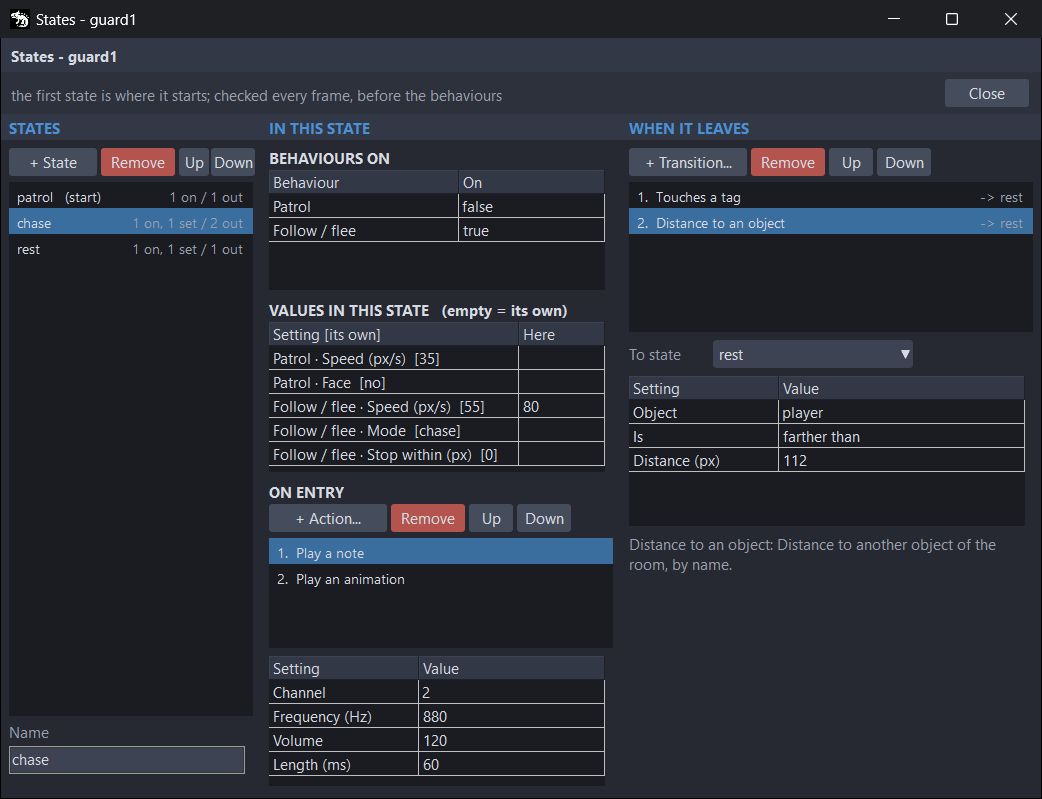
It has three columns:
- STATES: the states. + State adds one (
state 1,state 2…), Remove deletes the selected one, and Up and Down move it. The first one shows(start). On the right of each one, a summary: how many behaviours it turns on, how many values it changes and how many ways out it has (1 on, 1 set / 2 out). Below, Name renames it. - IN THIS STATE: what the selected state does, in BEHAVIOURS ON, VALUES IN THIS STATE and ON ENTRY.
- WHEN IT LEAVES: its transitions.
When you rename a state, the transitions that went to it follow it. Two states cannot have the same name: if you type one that is already taken, the box goes back to the previous one.
As in Room logic, each change is undone with Ctrl+Z in the scene editor, and Close hides the window.
Behaviours on
BEHAVIOURS ON lists the object's behaviours that do something on every frame: all but Show a variable and Animation. Set each one to true or false in every state.
The machine is only in charge of those that are true in some state. On entering a state, it turns on that state's ones and turns off the rest of that list. Those that are not true in any state, such as a Health, go on their own way.
If the object has no behaviours yet, the grid says so: (this object has none yet). Give it some first in the inspector (Behaviours).
Values in this state
VALUES IN THIS STATE changes behaviour settings while the state lasts: the same Patrol can go slowly in one state and fast in another.
Each row is a setting, with the object's value in brackets: Patrol · Speed (px/s) [40]. Put this state's value in Here; empty, the object's value applies. On going to a state that does not change it, the setting goes back to the object's value by itself.
Only the settings that the behaviour reads on every frame appear. Those it reads once at the start, such as the range of Patrol, do not:
| Behaviour | Settings a state can change |
|---|---|
| Linear motion | Speed X, Speed Y |
| Patrol | Speed (px/s), Face |
| Follow route | Speed (px/s), At the end |
| Follow / flee | Speed (px/s), Mode, Stop within (px) |
| Sine wave | Amplitude (px), Period (s) |
| Platform control | Speed (px/s), Jump (px/s), Control left, Control right, Control jump, Face |
| Top-down control | Speed (px/s), Directions, Control left, Control right, Control up, Control down, Face |
| Health | When it runs out |
| Destroy when it leaves | Margin (px) |
| Spawner | Every (s), How many each time, Max at once |
In VALUES IN THIS STATE decimals take a point. What is not valid does not get in: with a number out of range, or an option that is not in the list, the cell goes back to what it had. If none of the object's behaviours has settings like these, the grid says (no behaviour to change).
Actions on entry
ON ENTRY are the actions done on entering the state, once and top to bottom. They are the same as those of the rules (Actions). + Action... opens the picker, Remove deletes the selected one, and Up and Down move it. Its settings appear below.
The subject is the object itself, and there is no other. The actions run after the behaviours are turned on and off and the state's values are set, so they find them already in place. When the room loads, those of the first state run too.
Transitions
WHEN IT LEAVES are the ways out of the state. + Transition... adds one, Remove deletes the selected one, and Up and Down move it: they are checked in order, and the first one that holds wins.
To state says which state it goes to. A new transition goes to the first state that is not this one. A state without transitions is a final state: the object stays in it.
| Transition | It leaves when | Settings (default) |
|---|---|---|
| After a while | That many seconds have passed since it entered the state. | After (s) (2). |
| Distance to an object | Another object of the room, chosen by its name, is closer or farther than that distance. | Object. Is: closer than (the default) or farther than. Distance (px) (64). |
| Touches a tag | It touches any live object carrying that tag. | Tag. |
| When a variable... | A room or game variable meets the condition. | Variable. Is (==). Than (0). |
The distance goes from the position of one object to that of the other (their x and y), not from collider to collider. If the other object is gone, Distance to an object does not fire.
How it works in the game
- On every frame, before the behaviours, each object's machine counts the time and checks the transitions of its state. If one holds, it changes state, and the new one already applies on that same frame.
- On entering a state, in this order: it turns the behaviours on and off, sets the state's values and runs its entry actions.
- When the room loads, each object enters its first state once every object has been created.
- Objects with the same machine share the generated code: ten identical guards make a single set of functions.
Which objects they work on
Edit states... is available for any object of an object layer, except routes and the objects of a Decor layer. But in the game the machine only works on the room's sprites and images, and on the copies of a sprite template, because it looks at the distances and contacts of the object's sprite. On a shape or a marker it can be edited but it is not generated: see the known issues.
A template takes the machine of the object it comes from. Each copy made by a Spawner or by Create from a template has its own, and starts in the first state when it is born.
On the canvas
With View › What the behaviours do on, which is how it comes, the canvas draws what each machine looks at:
- a circle for each Distance to an object transition, in the colour of the state it leaves from: filled if it fires on getting closer and dashed if it fires on getting farther;
- under each object with a machine, one dot per state; the first state's dot has a ring.
For the selected object it also draws whom each circle measures, whom it has to touch, at start if a transition of the first state already holds when the room loads, and the whole machine on a card next to it.
What the problems panel warns about
The problems panel checks the rules, the entry actions and the transitions. A rule is named by its place in the WHEN list, as in Rule 2 (When two things touch) > Tag B: nothing in the room carries the tag "coin". Among other things, it warns about:
- a setting that is empty, or that names something that is not there: an object, a zone, a tag nobody carries, a variable, a template, a piece of music, a game control or a state;
- an action with
subjectorotherin a rule that does not have it (The subject and the other); - Call a function of yours with no name, or with a function it cannot find in the project code;
- Ask for another room with no room;
- a number that is not a number: the default value is used instead;
- Change a variable on a game variable in When the room starts: it overwrites it every time the room loads, also when it is repeated after losing a life;
- an object with Continuous collision watched by a When two things touch rule or a Touches a tag transition: the body stops right at the surface, without overlapping, and the rule does not see that hit.
If a rule names a control the game does not have, the panel's Create missing controls button creates it in Game › Controls.
With code
- The rules end up in the
<Room>Events(room)function of the room's.gen.aru(those of When the room starts, at the end of<Room>Load), and each different machine in<Room>Fsm0,<Room>Fsm1… The code it generates explains it. - The running machines are in
room.fsm0,room.fsm1…, one per object. In each one,m.spris the object's sprite,m.stthe number of the state it is in (the first one is 0) andm.tthe seconds it has been in it. In the.gen.aru, above each machine you can read which objects use it. - When two things touch and Touches a tag ask with
sprite.hits. To react to a physical hit from the code of an object, usesprite.onCollision.
Known issues
- Delete always deletes an action while the rule has any, because selecting a rule selects its first action. To delete a rule, press Delete once for each action and once more for the rule.
- If you make Room logic taller, the two grids of SETTINGS grow at the same time and the top one covers the bottom one. The window remembers its size. Make it shorter until you can see both; the width does not affect them.
- The problems panel names rules by their place ("Rule 3"), but the WHEN list does not number them, and a double-click on the warning opens Room logic on the first rule. Count from the top: "Rule 3" is the third one.
- The picker cuts long descriptions, such as that of Change a variable. The tables on this page give them in full, and so does the SETTINGS help once it is added.
- In States, if you press + Action... or + Transition... right after typing in a cell, that cell can write an empty value into another row with the next click. Click the list of states first and, after adding, check the values.
- A Turn a behaviour on or off action on entering a state does not turn the behaviour off if nothing else in the room turns it on or off: no rule, no BEHAVIOURS ON list of a machine, and no object that carries it switched off from the start (Enabled set to
false). The behaviour keeps running. Make the change with a rule: have the entry action change a variable, and a When a variable... rule turn the behaviour off. - Edit states... can also be pressed with a shape or a marker selected, but that machine does not reach the game and the problems panel does not warn about it. Put machines on sprites or images.
- The problems panel accepts a tag or a name if any object of the room carries it, but in the game only sprites, images and template copies have them. A When two things touch rule with a marker, or a Distance to an object transition to a marker, never fires: for a marker, use When it enters a zone. The game also tells upper and lower case apart and the panel does not:
enemyandEnemyare two tags, and changing only the case of a tag does not change it in the rules. Always write them the same way. - The problems panel is missing some warnings. It says nothing about Take health away on an object without Health, or about Turn a behaviour on or off of a behaviour nobody in the room carries: both do nothing. Nor does it warn about Ask for another room to a room that does not exist or that you have renamed, or about Create from a template with a template whose sprite has been deleted, which creates nothing. Check those cases yourself.
- Change a variable with a
boolorstringvariable: use onlyset. Withadd, the default operation, abooldoes an "or": addingfalsedoes not turn it off. With astring,subtractandmultiplystop the game with an error. - With physics, When two things touch and Touches a tag can miss hits between two bodies that the physics pushes apart, such as two Dynamic ones: the overlap lasts a single physics step, and with the room at 60 steps per second and the game at 30 fps each frame runs two steps. In a test on Windows, at 30 fps the rule saw 4 hits out of 6. If one of the two is Visual, the physics does not push them apart and it does not happen. For hits between bodies, react in the object's code with
sprite.onCollision.
All the known issues of JARU, together, are in Known issues.