Connecting an AI assistant
An AI assistant such as Claude or Codex can work inside JARU IDE: it reads the open project, changes the code, builds, runs the program, debugs it and edits the rooms, the tilemaps, the images and the music. You ask in your own words in the assistant's window, and you see what it does in the IDE.
This page covers how to connect it and how you know, at any moment, what it is doing. What to ask and what to keep in mind is in Working with an AI assistant.
Settings has another section, AI Agents, which is something else: there it is the IDE that calls a model, with your key, to generate I2C drivers. What this page covers needs no key in the IDE: the assistant is a separate program, with your Claude or Codex account.
What you need
- JARU IDE open. The assistant can only work while the IDE is open.
- Claude Desktop or Codex, installed on the same computer and signed in with your account. They are separate programs: they don't come with JARU IDE.
1. Turn the connection on
The connection comes turned off. You turn it on in Config › IDE › Settings:
- Tick Let AI assistants connect to this IDE (MCP).
- Press Apply config.

It turns on right away, without restarting the IDE, and a badge that says AI: on appears to the right of the ribbon tabs.
To turn it off, untick the checkbox and press Apply config. With the connection off, no assistant can do anything in the IDE.
It is the name of the protocol an assistant uses to talk to other programs (Model Context Protocol). You don't need to know more: the two buttons next to the checkbox set it up for you.
2. Connect your assistant
Do it once for each assistant you use. Both can be connected at the same time.
Claude Desktop
- In Settings, press Connect Claude. JARU IDE hands its extension to Claude Desktop and tells you that Claude is now showing it. Close the notice with OK.
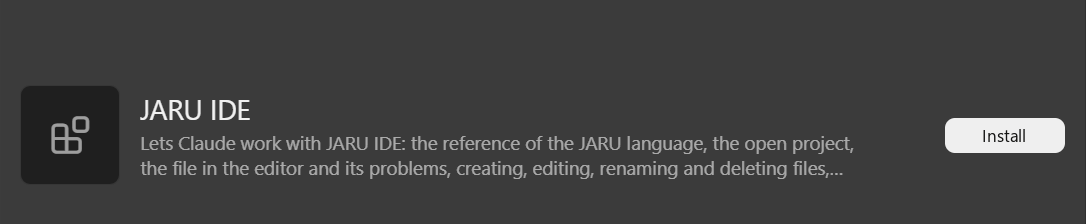
- Go to the Claude Desktop window, which may have ended up behind the IDE's. It shows the JARU IDE extension, with a warning: the extension will have access to your computer, and Anthropic has not verified who made it. Press Install.
- Start a new chat in Claude.
The extension also works in the Code tab of Claude Desktop.
Press Connect Claude again and install once more. Claude Desktop keeps its own copy of the extension, and without that it would go on using the one from the previous version.
If JARU IDE can't find Claude Desktop, the button tells you so and gives you the path of the extension file, jaru-ide.mcpb, so you can install it yourself from the extensions section of Claude Desktop's settings.
Codex
- In Settings, press Connect Codex. JARU IDE tells you which file it is going to change: the configuration of Codex.
- Answer Yes. JARU IDE adds its connection there and touches nothing else in the file. It saves a copy next to it first,
config.toml.before-jaru-ide. - Start a new chat in Codex.
The first time Codex is about to change something in the IDE, it asks you for permission in its own window.
Keep in mind:
- Codex has to be installed and to have been opened at least once. If not, the button tells you so and changes nothing.
- After updating JARU IDE there is nothing to do: Codex uses the connection program that comes with the IDE.
- If you install JARU IDE in another folder, press the button again: it tells you that Codex is connected to another copy and offers to change it to this one.
- If it was already connected, the button tells you so and writes nothing.
Claude Code
Claude Code, the one in the terminal, has no button. You connect it with a command, which points to the connection program that comes with the IDE:
claude mcp add --transport stdio --scope user jaru-ide -- "C:\Program Files\JARU IDE\Mcp\jaru-mcp.exe"
If you installed JARU IDE in another folder, change the path. With --scope user it works for all your projects.
3. Check that it works
With a project open in JARU IDE, ask the assistant:
Which project do I have open in JARU IDE?
It has to answer with the name of the project and its files. While it looks, the badge in the IDE says who it is, and its request is written down in Output.
Who is working
The badge

| The badge says | What it means |
|---|---|
| AI: on | The connection is on and nobody is doing anything. |
| AI: Claude | Claude is working in the IDE. |
| AI: Codex | Codex is working in the IDE. |
| AI: active | An assistant that is neither of the two is working. |
- The name stays while what the assistant asked for lasts, including a long build or a long send to a board, and for 10 more seconds. Then it goes back to AI: on.
- With both connected at the same time, it shows the name of the last one that did something.
- Without the connection on, there is no badge.
- A click on it opens Settings.
Output
Everything an assistant asks the IDE to do is written in the Output window, with its name in front:
[CLAUDE] project_info
[CODEX] build
[CODEX] run
What belongs to nobody, such as turning the connection on and off, goes with [AI]. An assistant that is neither Claude nor Codex also shows up as [AI].
Sending the program to a board
An assistant can't flash a board on its own. When it asks to, JARU IDE asks you, every time, in a dialog that says which assistant is asking, which project, which board and which port:
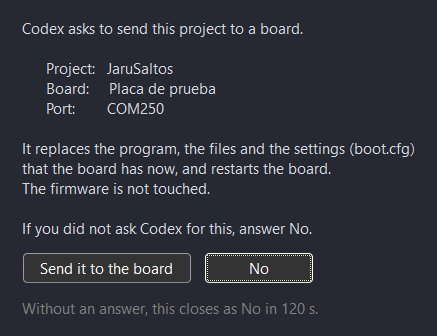
- It is only sent if you press Send it to the board.
- If you don't answer in 120 seconds, the dialog closes as No.
- When the assistant runs the program, it always does so on Windows: with a board as the build target it doesn't run it, so as not to flash the board.
If it doesn't work
| What happens | What to do |
|---|---|
| The assistant says that JARU IDE is not open (JARU IDE is not open). | Open JARU IDE and check that the connection checkbox is ticked: you have to see the badge. |
| The assistant says that JARU IDE did not answer in 20 seconds. | The IDE is busy, or waiting for you in a dialog. Look at its window and, once it is free, ask again. |
| Claude doesn't know JARU IDE, or doesn't have what's new after an update. | Press Connect Claude, install the extension and start a new chat. |
| Codex doesn't know JARU IDE. | Press Connect Codex and start a new chat. If nothing changes, close Codex and open it again. |
| You have two JARU IDE windows open and the assistant works in the other one. | The connection belongs to the one that was opened first. The second one says so in Output: "another JARU IDE window already has the connection". |
| The badge says AI: active and the assistant is Claude. | Claude is still using the extension from a previous version. Press Connect Claude, install it again and start a new chat. |